Setting restricted hours on a song
Limiting when a specific song is allowed to play.
Updated
Restricted hours started as dayparting. Playing a Sinatra record into a Little Richard record was what we call a train wreck. So the idea was to play Sinatra when the kids were in school, and Little Richard in the afternoons and evenings, after school let out.
Today I think a station should sound the same around the clock, so there's very little reason to daypart anymore. The only reason to daypart is to keep a song from scheduling at a certain time of day, for whatever reason. That is what restricted hours do. A restricted hour is an hour of the week in which the song may not be scheduled.
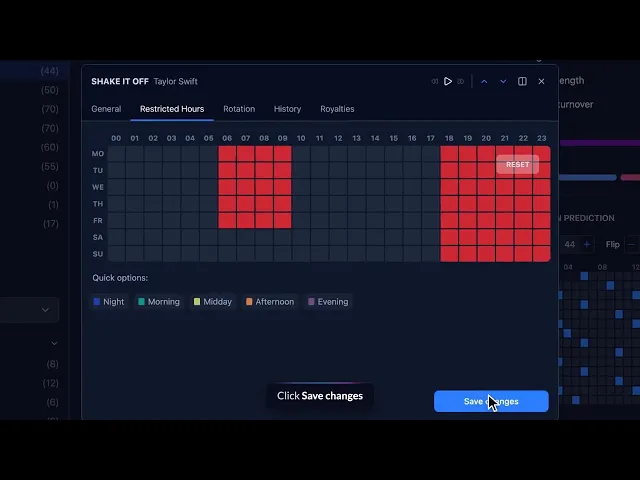
Setting restricted hours
Double click the song to open its card and click Restricted Hours.
The grid has a row for each day, MO to SU, and a column for each hour, 00 to 23. Click a cell to restrict that hour, or drag across cells to restrict a block. Click a day to restrict the whole day, or an hour to restrict it on every day. Click a restricted cell again to free it. RESET clears the grid. Here I restricted Shake It Off from 06 to 09, Monday to Friday.

Quick options restricts a part of the day on all seven days: Night (00 to 05), Morning (06 to 09), Midday (10 to 13), Afternoon (14 to 17) or Evening (18 to 23).
Click Save changes.
Because the grid covers the whole week, it also works per day. A station once asked me how to get its Monday jingle on air at 8am and noon on Mondays, and the Tuesday jingle on Tuesdays. You restrict each jingle, locking out every hour and day where you do not want it to be scheduled.
To restrict several songs at once, select them in the category and choose Edit fields (the pencil icon), then Restricted hours, in the bulk options bar at the bottom of the screen.

The hours you set replace the hours on every selected song.

Restricted hours belong to the song, so they apply wherever it is scheduled, including countdown and selection categories. A song restricted in every hour is left out of scheduling altogether.
For a whole group of songs, a category works better. Take an oldies library with songs of five to six minutes. In the daytime, with more commercials, they can cost you two songs an hour. What I would do is put those longer songs in their own category, and then just put that category in your night clocks.
When a restricted song comes up
Songs come up in rotation order. When the next song in line is restricted in that hour, the scheduler takes another song from the category and the restricted song is either held or flipped. You choose which per category: hover the category in the sidebar, click the 3 dots, choose Advanced options and use the Flip restricted Songs switch.
Hold (the switch off). The song keeps its place and is first in line in the next hour it may play.
Flip (the switch on). The song moves back in the rotation as if it had played, so it doesn't pile up right after the restriction ends.
My rule: flip in categories that play their songs several times a day, hold in categories that play them a few times a week. In a Hot Current category with 7 spins a day, about a 3:40 turnover, a song restricted from 6 to 10 that comes up at 8:00 and flips will next be scheduled at 11:40. It gets 6 spins that day instead of 7, which is what you want. In a category set for 5 spins a week I would hold the song instead, so it will get its planned 5 plays each week. The setting itself says it is recommended when the category's average turnover is below 1 day.

Was this helpful?
Related articles