Clocks and formats
Build the hour once. Use it all week.
See how long every hour runs and what it plays before it’s scheduled, plan holidays without touching your regular week, and put the right intro or outro next to every song. That’s what your format clocks and day formats do in MusicOne.
Free for 30 days. No credit card, nothing to cancel.
Format clocks
A format clock that shows its numbers.
Know what an hour will do before it’s scheduled. While you build a clock, MusicOne adds up how long the hour runs and how many daily or weekly spins each category gets. The clock itself sets the order of the hour: category slots, songs fixed to a position, spot breaks and commands for your automation software.

One clock for small variations. Your clocks stay easy to manage. Restrict a single item to certain hours, like a breakfast-only jingle, instead of making a duplicate clock.
See the whole hour. Even the parts MusicOne doesn’t schedule. Don’t use MusicOne for spot breaks or imaging? Add placeholders for them anyway, with the right length. The hour then shows everything that will really air, so you can review its flow and timing, and the placeholders stay out of the exported log.
Works with your automation software. Its commands are predefined, so you add one to a clock with a single click. Also on hand: chain markers, drop and sweep, and playback options.
Rework a clock in seconds. Select several items to duplicate, copy, chain or remove them together, start a new clock from a copy of an old one, and colour-code your clocks to find them fast.
Day formats
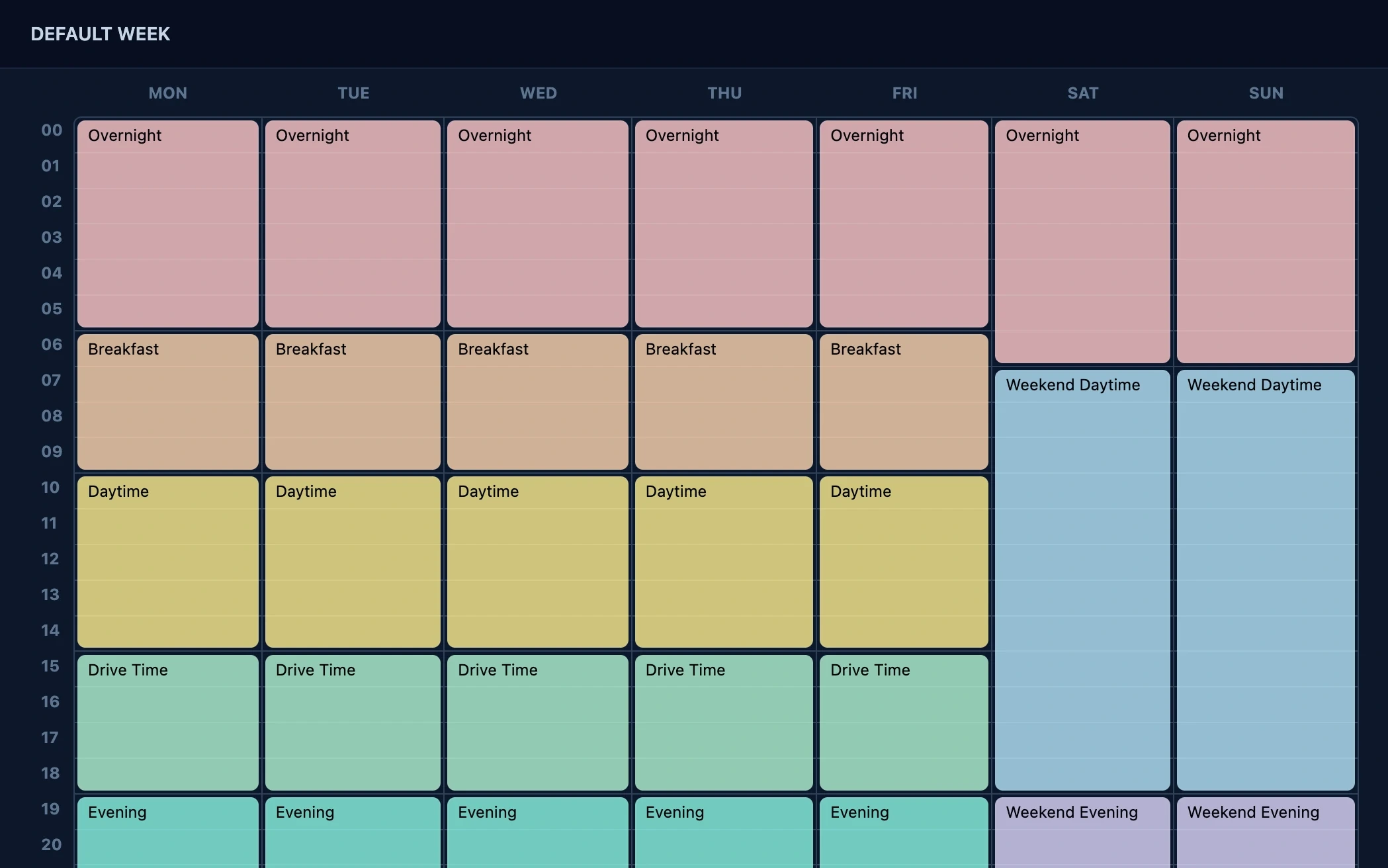
Holidays without rebuilding your week.
Plan your whole week in one view, and handle Christmas without touching it. In the Default week you assign a clock to every hour of every day. That’s what MusicOne schedules from: each day uses the matching day of your Default week.
Christmas, a sports event, a special weekend? Create a custom day format, or start one from any day of your week. Then, before you schedule that date, pick the custom format for it instead.
Production and imaging
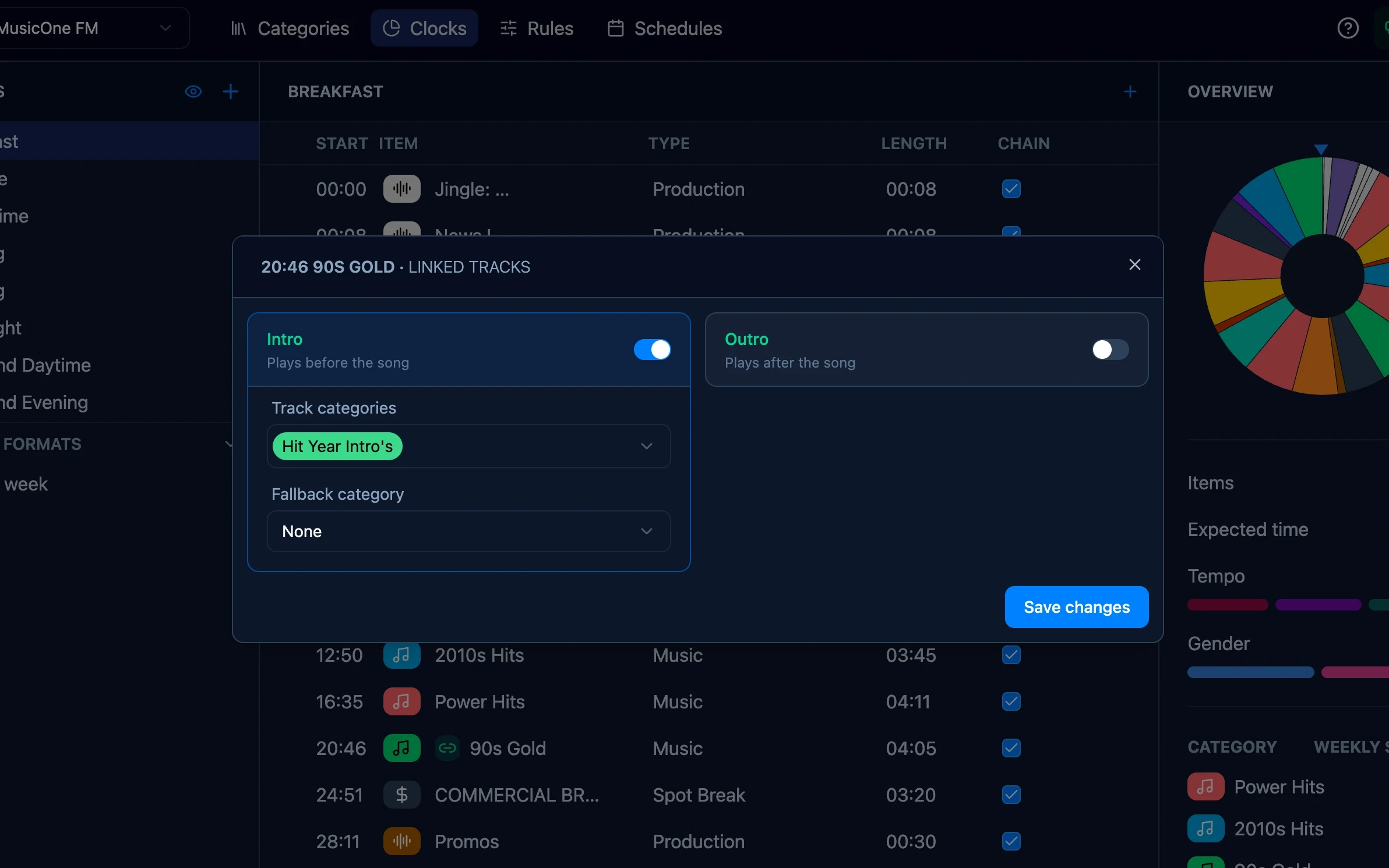
Hit year intros and artist backsells, placed for you.
Put a linked-track slot in your clock, and MusicOne places the right production next to each song. A hit year intro before the song, say, or an artist backsell after it: whatever you link, the clock places it. Link your production tracks to an artist, a hit year, a sound code, or straight to specific songs.
Build your first format clock.
Import your clocks from MusicMaster, PowerGold or MusicOne Windows, or build one from scratch, and see the hour’s numbers as you go.
Free for 30 days. No credit card, nothing to cancel.