MusicOne Windows · Importing your library
Meta-Data Editing with Mp3Tag
Add or edit Title and Artist tags with the free Mp3Tag app, for example after converting .wav files to mp3.
Updated
.wav files don’t contain meta-data, those fields that have the Title and the Artist that can be read and displayed on the listeners player devices. There is a type of .wav called ‘cart chunk’ that sticks meta data onto regular .wav’s, but I don’t often encounter those. Of course, .mp3, Apple audio and the few other popular digital audio formats do contain meta-data. I use two free apps to enter and edit meta-data. MediaMonkey and this one, Mp3Tag. There is another video, in Importing Data from Mp3Tag software, that shows how to export the meta to a type of file that Music 1 can immediately import, but that’s not often necessary since M1 itself can import the data directly if the audio file has it. If you should need to import a lot of .wav’s into Music 1, you can use either MediaMonkey or Mp3Tag to do it. More about mp3 tags: Mp3 Tags – Explained and Using MediaMonkey To Edit mp3 Tags.
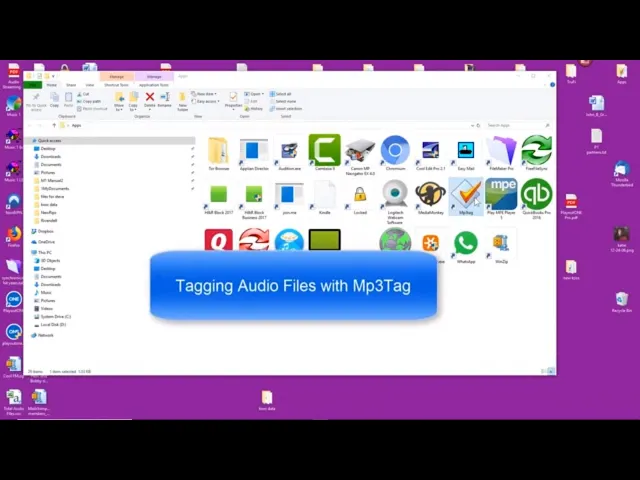
I use Mp3Tag often because it is set to read one folder at a time. When I tell it to scan a different folder, it clears the one I’m currently viewing and then loads the files that are in the next one I click to see, making my searches and sorts quicker. I’ve been converting a lot of .wav files to 320k mp3’s. When I do that, I have to type the meta-data, the Titles and Artists onto the .mp3. This 3-minute video shows the process.
Watch the video on YouTube: Music 1 - Mp3Tag Editing and Importing