MusicOne Windows · Rotations
Play Number
Understand the Play Number, total plays and category spins, when new songs get scheduled, and whether a search-and-schedule counts.
Updated
MusicONE keeps a running total, counting every time a song gets scheduled. As you move songs from one Category into another, it also adds up how many times each song is scheduled from within each category. I always set up a category view that shows me Total Plays and Plays this List (the current category). Then there is another one called the Play Number and this one is not 'history'. Rather, it is a simple little counter that ensures all the songs in the group get equal plays; M1 won't over-schedule nor under-schedule any songs. Here's a 2:35 video about it.
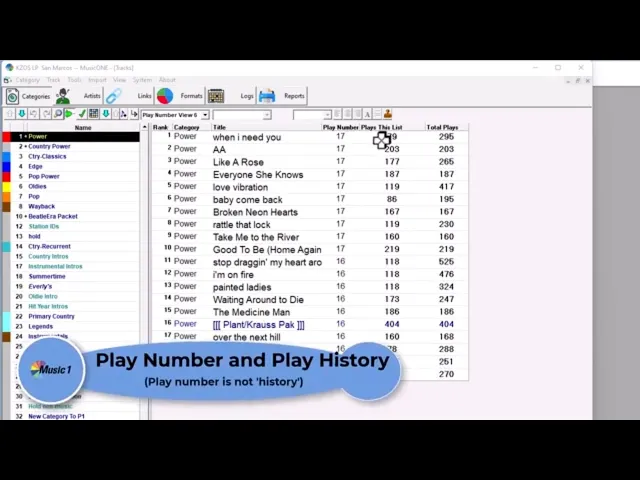
Watch the video on YouTube: Play Number-Category Spins-Total Spins
How the Play Number works
First, it is important to understand the Play Number and its function. The Play Number system is what allows M1 to deliver the most consistent song rotations in the music scheduling software biz. If you’ve used other music schedulers, you’ve no doubt noticed they sometimes over-play some songs in a category while under-playing others. To prevent such a thing, M1 uses the Play Number. It is not a ‘spin count’ and it is not song history. Rather, the Play Number is a simple yes/no thing.
When you display a Play Number column in your category view, you normally see just two numbers. It is not important what the numbers are, only that they are sequential. 54 and 53. 9 and 8. 105 and 104. The higher number means “yes, this song has been scheduled in the current pass through the category.” The lower number means “no, the song hasn’t yet been scheduled in this pass.”. The first song in rank order is the one that is currently at the “top” of the stack; meaning it will be the first song from the category to be scheduled when you begin your next playlist.

When every song in the category has the same number, M1 goes back to the top of the card stack and begins scheduling the songs again from the top of the rank order. As it does, it adds a new ‘higher’ number as each song is scheduled.
You can re-set the Play Number to zero, with the Category Shuffle command and clicking the box to “Clear Played Flags”.
New songs in a category
I’ve noticed that when I add new songs to one of my categories, they usually don’t get scheduled until a day or two later. Shouldn’t they get scheduled right away?
When you move a new song into the category, it comes in with the highest Play Number, so it won’t be scheduled until the category turns over. Depending on the number of songs in the category and the current Play Number position, this could be from only a few hours later to several days after the move.
When a song is added or moved into a new/different category, it is added to the bottom of the stack. Even if you then manually move it to the top of the stack, that does not necessarily mean it will be immediately scheduled at the start of the next schedule/log that you create. The Play Number is a controlling factor here.
There have always been differing opinions about how to handle new songs that are added to the category; should they come into the category with the Lower number and thus be eligible for scheduling very quickly; or should they come in with the Higher number and not be available for scheduling until the remainder of songs in the category have scheduled? Here’s the choice: You have a category with 30 songs in it. You schedule two from the category every hour. The song in Rank position #28 was scheduled at 11:45pm Monday night, so when the Tuesday log is run, songs #29 and #30 will be scheduled in the Midnight hour, then the category turns over, M1 schedules song #1 in the category in the 1am hour.
But now before you schedule Tuesday, you add four new songs to the category. If those songs come into the category with the Lower number, they will then schedule immediately; two of them in the 1am hour, two in the 2am hour, then the category will turn over and the song at the top of the stack (Rank #1) will schedule in the 3am hour.
But if the new songs are added to the category with the Higher Play Number, then M1 would schedule songs 29 and 30 at Midnight, jump back to the top of the stack to schedule songs 1 and 2 in the 1am hour. The new adds won’t be scheduled until M1 has made another full pass through the list and gets down to the bottom of the stack in that second, full pass. Even if you manually move the songs up to the top of the Rank Order in the category, they will still not schedule very soon because they have the Higher Play Number attached to them.
For many years, we had M1 give the Lower Play Number to songs as they were moved into a category, thus making them eligible for scheduling quite soon. Most people liked it that way, indeed most didn’t even notice. But a few music directors had a complaint, not liking the fact that “all my new adds schedule right away.” So, we changed it so that new adds to a category came in with the Higher Play Number. This was ok with most, but a few said, “Hey, I put new songs into the category but they didn’t get scheduled until several days later.”
With Revision 220 you now have the option to have M1 set the Play Number the way you want it to be.

Search-and-schedule: a regular play or an extra play?
Here’s the puzzle: You want all the songs in a category to get the same number of spins. Sometimes you want to manually search-and-schedule a song, just drop it into the schedule somewhere because it’s the artist’s birthday or because you know it’ll sound good next to another song that you see on the scheduling clocks.
All the plays of songs ‘count’ as far as history and spin-counts are concerned. If a song is scheduled five times in a month by M1 itself and you also search-and-schedule the song three more times, the song will show a total of eight plays for the month and M1 will never “forget” that.
But there is a different kind of “play count”, as well. That is the one M1 uses to properly rotate songs within each Category. If your Gold category is set to have all the songs scheduling six times a month, M1 uses an internal rotational counting system to ensure that happens. It won’t normally repeat-schedule a song until every other song in the category has the same/equal number of plays. So, if one song gets its third play of the month on the 15th. the song won’t be eligible for scheduling again until every other song in the category has also had three plays this month.
Now this is just for example; M1 doesn’t take actual days-weeks-month periods-of-time into this particular equation. The Play Number is the thing, no matter what the specific turnover or repeat-pattern of a Category may be.
The question is: When you do a manual search to find and schedule a song, do you want that to count as a regular rotational play or not? You have the option.
When you do a manual search-and-schedule, you may have the song(s) Play Number incremented, or not. This is a universal setting, affecting all categories, so you need to consider which way to have it handled. The Option is found on the System Settings screen. There you’ll find a box labeled: “Count play of track scheduled through manual search.”
Example 1: Play Number not counted
You have a category that turns over every other day. A song scheduled on Monday schedules again on Wednesday, then on Friday. When scheduling your Tuesday list, you do a search and drop the song into the log in the noon hour. The Play Number is not incremented, so the song will be scheduled again on Wednesday when it comes up in its regular rotation sequence. This way the song gets an extra play this week, it schedules four times instead of three times.
Example 2: Play Number is counted
Same scenario as above, the song is scheduled on Monday by M1. As you schedule the Tuesday log, you search-and-schedule the song in the noon hour. The Play Number IS incremented so this now counts as a “regular” play. The song now will not be scheduled Wednesday, but will next be automatically scheduled sometime on Friday. This way the song gets only the regular, normal three plays for the week, but they are on Monday, Tuesday and Friday.
Important extra fact: This system applies only to “empty” slots. If Music 1 has scheduled a song in a slot and then you click to select that song on the clock, do a search and drop a different song into the slot, that always counts as a regular play. If you do not want to have the song you searched-and-scheduled to be counted as a “regular’ play, then first you must click/select the song on the clock, then click the red X button at the bottom of the screen to ‘un-schedule’ the slot. Now, with the slot empty, you can search-and-schedule a song and not have it counted as a regular play (the Play Number will not be incremented).
So, when you search-and-schedule a song, should it count as a “regular” play or should it just be an “extra” play. This is not an “always this way” or “always that way” proposition. Sometimes you’ll want it to ‘count’ and sometimes you won’t. Music 1 allows you to handle it either way, but because this is not always a yes/no action, you need to have a clear understanding of the function. Below are four video tutorials. They run between 3 and 4 minutes each. Please see them all.

Watch the video on YouTube: Categories - Play Number Tutorial #1 of 4

Watch the video on YouTube: Categories - Play Number Tutorial #2 of 4

Watch the video on YouTube: Categories - Play Number Tutorial #3 of 4

Watch the video on YouTube: Categories - Play Number Tutorial #4 of 4