MusicOne Windows · Rules & rule violations
Rule Violation: Time
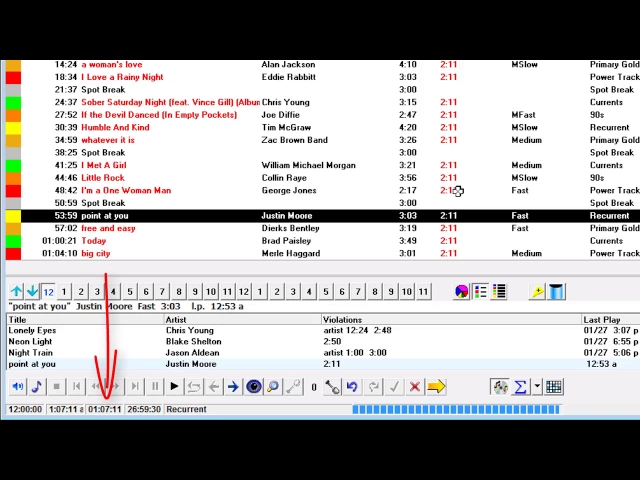
Know why every song in an hour shows in red with a time in the Violations column: the hour is over its maximum content.
Updated
During a scheduling / editing session, you may sometimes encounter a violation alert that shows only a Time. On a log schedule, every music item will display in red font and in the Violations column they’ll all have the Time. In the Selections list below the Schedule screen, songs will appear with a different Time flag. This serves a specific purpose. Most commercial stations over-schedule their hours by one or two songs so there will be sufficient content should the commercial load for the hour be lighter than expected. Newly created Clocks automatically allow for 65 minutes of content. Should a fully scheduled clock-hour have more than 65 minutes of content the Time violation will appear.
M1 will not stop for this one, rather it will be displayed as an alert.
Watch the video on YouTube: Scheduling - Clock Timing Rules, All in Red Font
Every song on my finished schedule is showing in red
Any songs that have been scheduled that are in violation of a formatting rule will display in RED font. If all of the songs on a scheduled clock show RED…then you most likely have a time setting in the Violations column. And it will be the same for every song.

What this means is the total content of the hour is over the maximum set on the clock. The content is MORE than your “Partially Scheduled hour Maximum Length”


Some are tempted to set the Fully Scheduled Hour as No Less than 60 Minutes and No More than 60 minutes. DON’T DO IT. While it is technically possible, using M1’s “fit to time” clock units, it is near impossible to manage.