MusicOne Windows · Rotations
Viewing The Song Rotation Chart During Scheduling
See a song’s past rotation while you schedule and edit, without opening the song card, and set how the chart is shown.
Updated
In earlier versions of Music 1, if you wanted to see a song’s past rotation as you were scheduling and editing, you had to first double-click to open the Song Card. With the release of Version 7, we made it easier and more efficient to access and view.
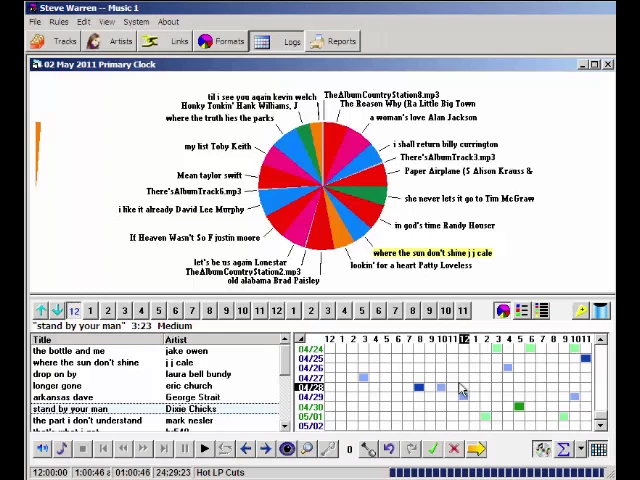
Watch the video on YouTube: Scheduling - Viewing Song Rotation Chart When Scheduling
Open a song’s rotation chart while you schedule
Since version 7, you can see the rotation chart of any song in the schedule, or of any song in the song selection list, with one click.
Click a song.
Click the little grid button in the lower right-hand corner. The chart appears.
The grid shows 10 days’ worth of data; scroll up to see the pattern for earlier dates. Blue squares are weekday plays, green squares are weekend plays.
Choose what the chart shows
Open the View menu and select Rotation Chart Style. You can choose:
Song: squares for just the selected song.
Song + Artist 1: dark boxes where this song has scheduled, light boxes where other songs by the same artist have scheduled.
Song + Artists: for duets. You see boxes for any song scheduled by either of the two artists.
Title: the placement of songs with the same title.
Song + Title: dark boxes where this song has scheduled, light squares where other versions of the same title have scheduled.
Setting the rotation chart style

