MusicOne Windows · Reports & printing
How Do I Create A “Spins” Report
Build a report of how many times songs from each category played over a week or a month.
Updated
I need to get a report showing how many times songs have been scheduled from different categories over the past month. Can you tell me how that’s done?

Here’s another view of the Report Design window:


Design a Weekly Spins Report
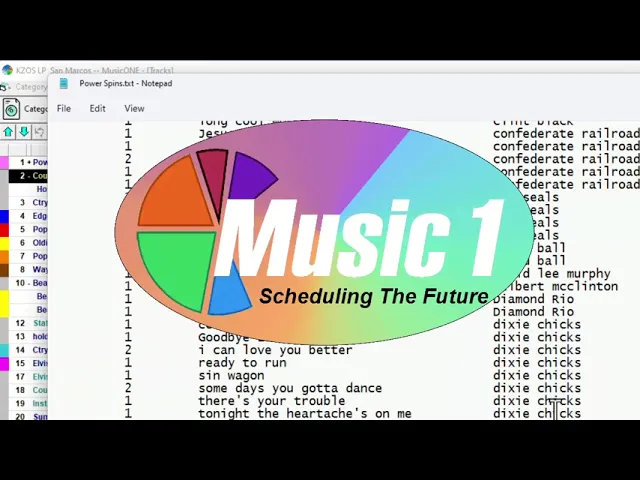
Watch the video on YouTube: Design a Weekly Spins Report
One of the more important things in music radio is keeping control of your inventory: how many times songs are exposed. That matters most if you’re a current-intensive station, where you may play songs 35 to 50 times a week or more.
Set up the report
Go to Reports and create a new report. Steve names his "Weekly Spins".
Add three fields: Title, Artist and Plays in Period.
Plays in Period gives you a seven-day report by default. The number of days is set by the number in the days field. For a 30-day or monthly report, enter 30.
You might also tick Played Tracks Only, for example for a gold library. That leaves out any songs that didn’t get played.
Set the sort order to Plays in Period, from Z to A, so the song with the most spins is at the top and the fewest are at the bottom.
Choose the print mode
The top three print-mode buttons print to paper. The others (fixed width, comma delimited and tab delimited) make text files. Steve makes a fixed-width text file.
You can enter a name here, but you’ll also be able to name the file each time you run and save the report.
For a fixed-width file, tell each of the three columns where to start printing across the page. Select Plays in Period and set its column to 10. Set Title to start at column 20, and Artist at column 60: that’s 60 spaces from the left margin.
Test it
Click the Test Print button.
Select a category (Steve picks Power) and print.
Name the file and save it, for example on your desktop.
Open the text file and there are your weekly spins: songs with eight spins and seven spins at the top, and down at the bottom a couple of new songs that were only added on the last day of the week.
Use it as a template
Close the report and save it. Now you can use this template to print anything you’re looking at in the category list: a single category, or several categories you’ve found with a search.
When you print from the category list, the list prints sorted the way you’ve sorted it on screen. Steve sorts it alphabetically by artist, chooses Print, picks the Weekly Spins template, clicks Print, names the file "Power Spins" and saves it. The result: a text file of spins from the last seven days, sorted by artist.