MusicOne Windows · Clocks & formatting
Clock Items – How To Mass Change
Change or update one item on many format clocks at the same time instead of clock by clock.
Updated
Any item on a Music 1 format clock can be changed to become any other type of item. Such changes can be made one at a time on the clocks, but there is a function that allows us to change or update an item on many clocks at the same time.
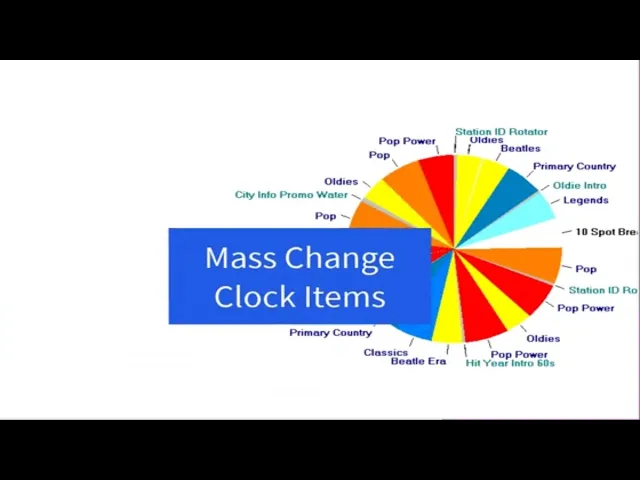
Watch the video on YouTube: Mass Change Clock Item Properties
Change clock items, one at a time or all at once
Anything on a Music 1 format clock is an item: a music category, a non-music category, a spot break, a player command. And you can change any item into anything else.
Change one item
Right-click the item on the clock (in the video, an Oldie) and select Properties.
Choose what it should be instead, for example a Power Country or Primary Country song, and click OK.
It doesn’t have to stay a song. You can change it to a non-song from rotation, such as a promo about early voting.
Change items on many clocks at the same time
Click the little wrench-and-screwdriver button at the top.
A window opens on the right with everything on every clock, every single time it’s used. For example, you can see that a category is used twice on clock number two, once on the Christmas clock, and on other clocks too.
Select the items you want to change. In the video, Steve scrolls to the bottom of the list and selects all of his player commands: soft markers for the end of the hour, all set to 59:59.
Right-click, select Properties, go to Start Time and enter the new time (58:30).
Click OK, and OK again.
All of those items are now at 58:30. That’s how you mass change a lot of items on a lot of clocks with a click or two.