MusicOne Windows · Scheduling & logs
Log Dating Trick
Get a log for the date you need, an earlier date, tomorrow or a past schedule reused, by renaming the log file.
Updated
I didn’t do logs over the weekend, so my logs stop on 5/08. Now when I go to schedule, it picks up at 5/12. Is there a way of going back to where I left off, so the next log M1 makes will be for 5/9?
You can trick it by scheduling as normal…saving the log that will be dated for the 12th. Then, close out the logs window and go into the Music 1 folder (usually on your C drive) and then into the Logs folder. There you see the logs for each day date/named like this: 20090508.log. If you change 20090512.log to 20090509.log, then when you open M1 again and look at the logs folder, you then have a log for that date. You can do this for the several days that you need. Now, if you’re going to schedule a “weekday” but the ‘next’ log happens to be a weekend date and M1 starts to load the weekend Dayformat, you can just select the regular Weekday format instead, so’s you’ll get the correct clocks and rotations for the REAL day you are about to schedule.
Scheduling tomorrow when there is no log for today
M1 always schedules the next date after the last date that it sees in the Log folder. If the last date is not in the future…then it schedules for “today”, whatever that is.
There is a way to work around this….you could go ahead and run and save the schedule with “today’s” date (using the Dayformat you need for the actual day the log is to be used) then close the Log folder screen in M1. You’ll see a new log there with today’s date. Go to the Music 1 folder on the c-drive. Open the Logs sub-folder and rename the file. The file is always named like this: 20230627.log. If you rename it to 20230628.log and then you go back to M1 and open the Logs screen, you’ll see one for the 28th. At that point, you click the “export to automation” button and it’ll make a playlist file for your automation system and will date it properly.
Using a past schedule on a new date
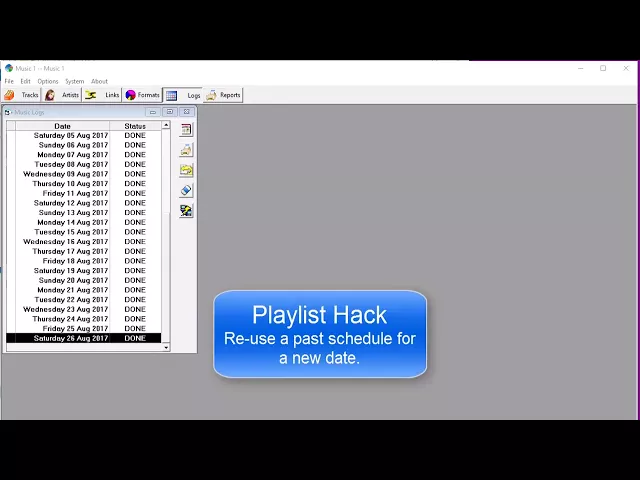
Sometimes a Music 1 user has need to use a schedule from a past date for a new date. This can be easily done by renaming the older log file and then exporting it to playout/automation as a new playlist. This two minute video shows how.
Watch the video on YouTube: Scheduling - Playlist/Log Date Hack