MusicOne Windows · Scheduling & logs
Scheduling Basics
Learn how Music 1 schedules: you fix things during the run, so every song in a category gets consistent spins and placement.
Updated
Music 1 was originally designed for the Mac so it operates in a somewhat different manner than other music schedulers you may have worked with. In short, with others the daily editing is done after the software has scheduled the day. A user corrects what the software did wrongly. With M1, the user fixes things during the scheduling run.
First with MusicONE’s Mac ancestor and now with M1 itself, Steve Warren’s two main goals are accomplished. 1) He wanted consistent spins on every song in each category. If he planned 45 spins a month for his Power Recurrent category, every song in the category got just that. 2) Consistent rotation placement across the hours and dayparts. Songs don’t schedule in the same hours over and over. None of the songs will “cluster” with multiple plays in the same daypart and few plays in others.
These four video tutorials explain the basics of the M1 system.
Scheduling Basics #1 – How Music 1 Selects Songs From Within Each Category
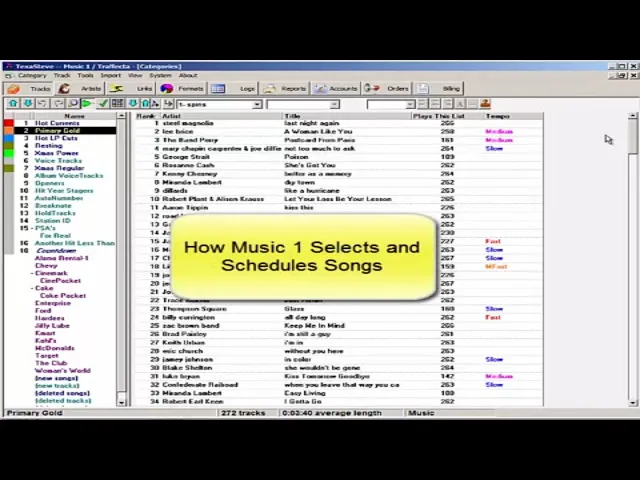
Watch the video on YouTube: Scheduling - Scheduling Basics
Scheduling Basics #2 – Setting The Maximum Number of Choices (The Search Depth)
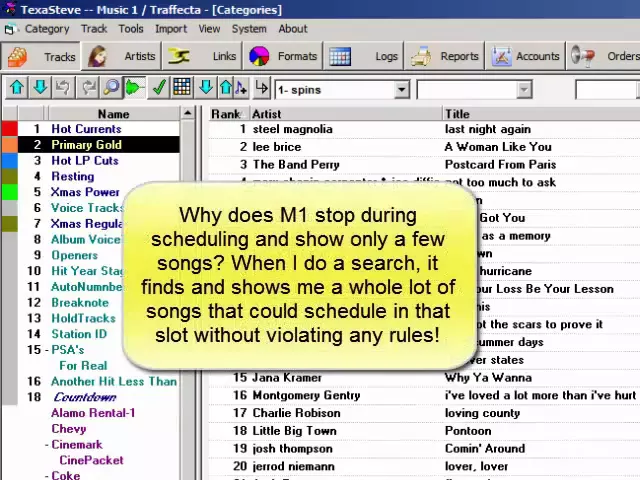
Watch the video on YouTube: Scheduling - Setting the Search/Dig Level
Scheduling Basics #3 – How M1 Ensures All Songs Get An Equal Number Of Spins
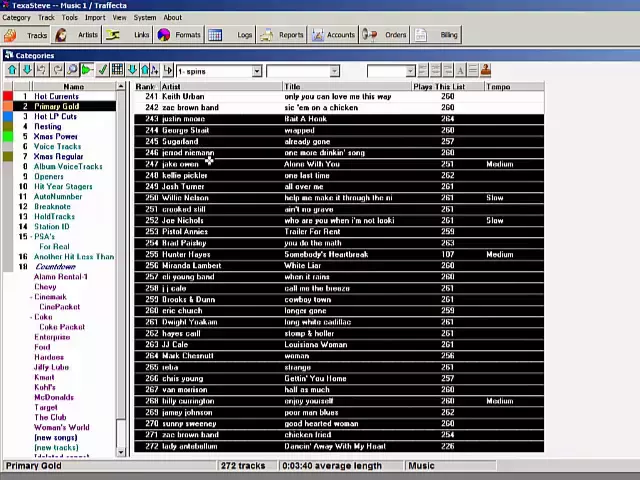
Watch the video on YouTube: Scheduling - Scheduling Basics - Equal Spins
Scheduling Basics #4 – The Basic Editing “Action” To Take When Scheduling
When M1 stops for a rule violation problem during scheduling, the first inclination is to click the search button to find something to drop into the slot. But that is NOT the best thing to do. This video shows the action to take.
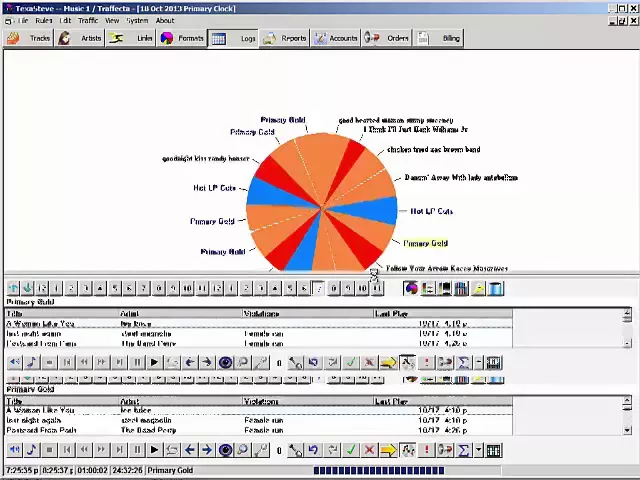
Watch the video on YouTube: Scheduling - The Basic Move
Scheduling Views
You can design different “views”, different ways to look at your schedule as you work with M1. This video was made with Version 6 and there have been a few changes to the functions buttons and menus in the newer Version.
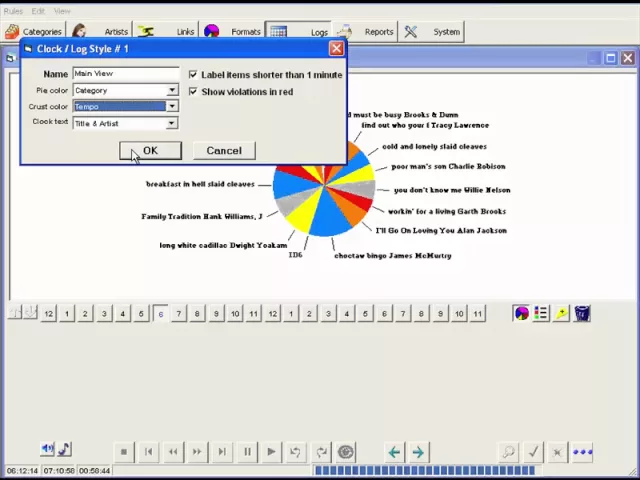
Watch the video on YouTube: Scheduling - Scheduling Views
Scheduling Start Time
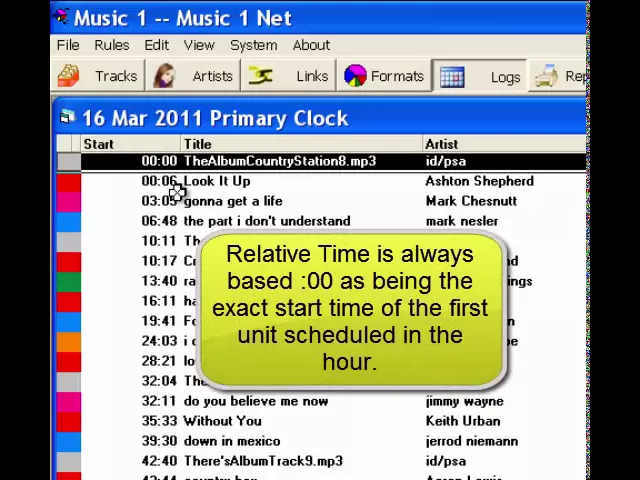
When you are scheduling and/or looking at a completed log, the Start Time of each unit can be viewed two different ways, either from “start of hour” or as “cumulative” time. There is a difference, as this video explains.