MusicOne Windows · Automation software
Player Commands
Use Player Commands to send your automation system time updates, hard and soft syncs, network joins and fades.
Updated
I need to get my automation system to do a time update at the end of each hour. This has to be a hard sync because we have to hit a network news feed right at the top of the hour.
Player Commands allow you to get M1 to give broadcast automation systems the proper instruction to do such things as hard and soft syncs, network joins and breakaways, time updates and other such things. Most professional broadcast systems can receive these things from M1. Some cannot. If you’re unsure, you need to talk with the tech support people at your system’s office. And you’ll probably then need to talk with us at M1 for some assistance. Once you’ve set-up a couple of these, then you’ll always know how to get it done. Here are four screen shots with the basic things to know.
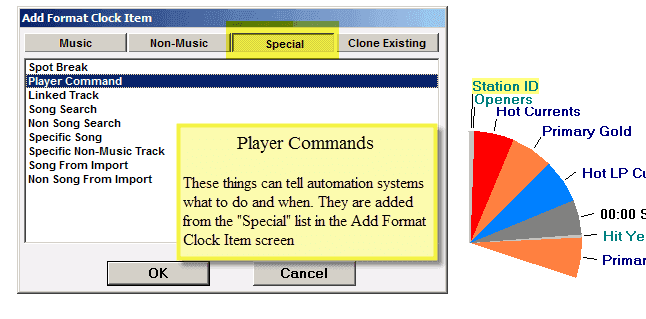


Player Commands Overview


AudioVault: a Simple Update and a Fade Update
I use Audio Vault and need to know how to get M1 to give A/V a “simple update” to be used at the top of the hour and a “Fade update” to get a program to start at a specific time.
You do that with Player Commands. I have some screen shots here showing how the Fade Update is entered for Audio Vault. These commands can be used with most automation systems. If someone is using a different automation/playout system, the Player Command fields may be a bit different than what you see in this example. We provide personal assistance for setting up Player Commands for any and all systems.


AudioVault: Fade at the End of the Hour
I need to put a command into Music 1 that will tell my Audio Vault system to fade at the end of the hour, drop any of the unneeded over-material I may have over-scheduled. How to do that?
Add a “Player Command” to the clock, then put the command into the proper field on that unit and enter the specific time that you want it to be given in the log file that M1 makes for the automation system. Screenshots below walk you through it. You have an A/V system, so I’ve used that one for the example, but the Player Command works with all systems. There may be some slight differences in the Fields that are displayed from one system to another, depending on the needs of each one.


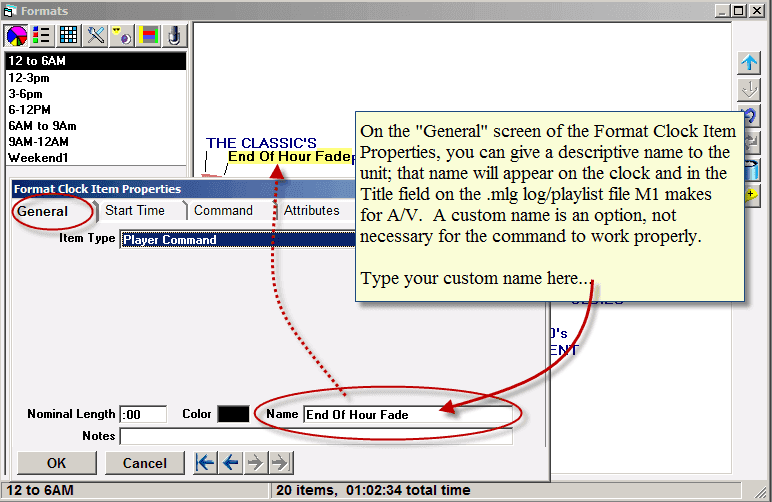


In the final screenshot (above), we’re looking at an AudioVault log file produced by M1. If you’re using a different automation system, you can open the log file M1 creates for your system with a text editor (right-click on the file and select: Open With…Notepad). You can visually check the output and see what M1 is doing with your command, its position and the given start time. If it doesn’t seem to be just right for you, contact Steve or Neil at the M1 office for assistance.