MusicOne Windows · Scheduling & logs
Quick Scheduling Pop Up Promos
Drop a short-run promo straight into the schedule without editing your master format clocks.
Updated
When we have something that needs to be scheduled only a few times and only on a few days, we don’t have to edit the master format clocks. It is often more efficient to manually insert the item directly into the schedule. This short video shows how to do it in the scheduling Log and Clock views. It runs 3:15.
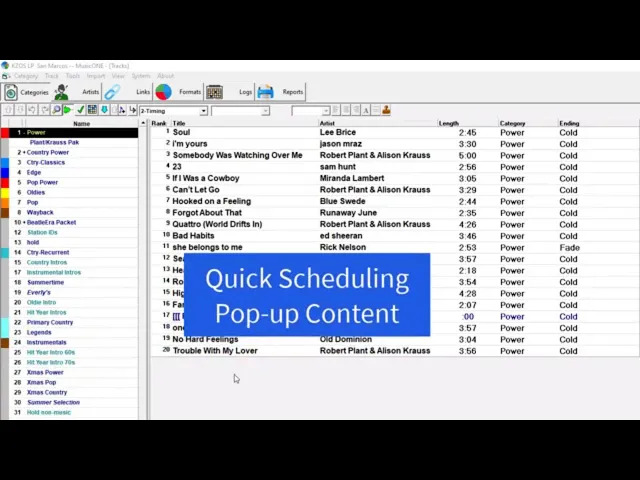
Watch the video on YouTube: Scheduling Pop-Up Promos
Drop a pop-up promo into the schedule
A pop-up promo is anything that comes up at the last minute and has to be scheduled six or a dozen times tomorrow, or maybe over a three-day weekend.
Make a category and a card
Before you can schedule anything, you need a category for it, so make one and call it Pop-Up Promo. It needs at least one card: the card is what actually gets scheduled.
If the promo were going to run for many days or weeks, you’d add it to the master format clocks. But this one only runs a few times on a few days, so it’s often easier to drop it into the schedule as many times a day as needed. There are a couple of ways to do that.
Option 1: switch a clock unit
Load a schedule and click an hour.
Right-click a clock unit, select Properties and change it to the Pop-Up Promo category.
Repeat in every hour where you need it.
Option 2: the graphic clock view
I think this way is easier.
Put the log into the graphic clock view.
Add the item to one clock several times (here about four times) and close the window.
Drag the promos from this clock to the other hours’ clocks: here from the noon hour to 2 pm, 4 pm, 6 pm and 8 pm. If one is hidden behind a marker, you can still get a handle on it and drag it.
In each hour, drag the promo to the position you want and release the button. Then cut the item it replaces, here the station ID.
Option 3: the log view
Sometimes it’s easier in the log view.
Click to the hour and switch to the log view. The promo is at the bottom of the hour.
Hold the Ctrl key and use the up arrow on the keyboard to move the promo to where you want it, here to where the station ID is, at about 10 past the hour.
Cut the station ID.
Now you can start scheduling. When it’s finished, your pop-up promos are scheduled in all the hours where you placed them.