MusicOne Windows · Scheduling & logs
Scheduling Stop With No Choices Showing
Get past a scheduling stop with no choices: let M1 leave an empty non-music slot unfilled.
Updated
MusicONE is designed to fill every slot in each daily schedule. In normal operation, it will not finish a schedule nor make a playlist file for the automation system until every formatted category slot of the day is filled. However, sometimes by accident or over-sight a category that is on the clock(s) might not have an audio card in it, or the cards in the category might all be hour-restricted out of the slot(s), or all of the cards might be end-dated. Should this happen to you, it is usually a non-music category causing the problem. The quickest thing to do in this situation is to jump to Tracks and to that category’s rule box. There you can click a box to allow M1 to leave the slot(s) empty. This won’t be a problem for playout, the problem unit will simply not appear in the playlist file.
Note: This ignore-the-slot action can only be done with Non-music categories. If the problem is with a music category, it must be filled with a song or else cut from the schedule.

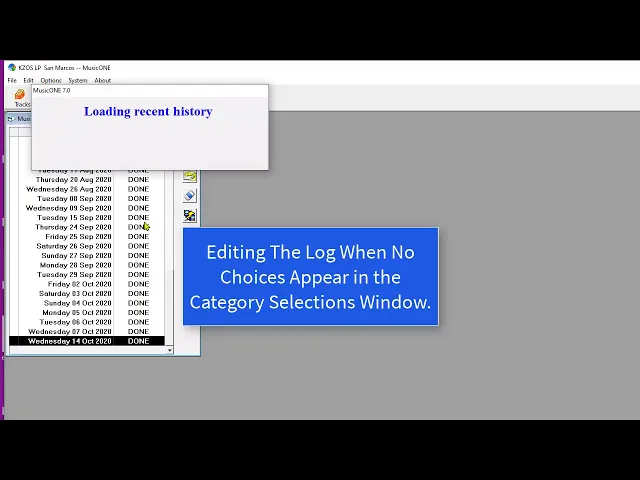
Watch the video on YouTube: Editing When No Choices Are Available