MusicOne Windows · Scheduling & logs
Scheduling In Automatic Mode
Have M1 schedule the full day, or several days, without stopping, and know how to check the rule violations afterwards.
Updated
There are three ways to schedule with Music 1. Inter-active, which is the original algorithm. Hybrid, a cross-mix with the traditional music scheduling algorithm which has the software making choices about rule violations. In hybrid mode, M1 stops only for edits of your unbreakable rules. And this one. Automatic has M1 scheduling the full day, every day without any stops for editing decisions.
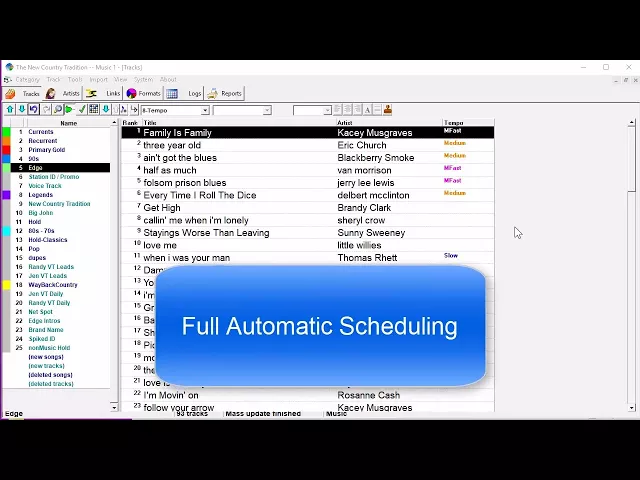
Watch the video on YouTube: Music 1 - Automatic Scheduling
Interactive vs. Automatic
I designed Music 1 as an interactive scheduling tool in order to make the editing choices as the daily schedule is being built. This fix-it-as-you-build-it function delivers spot-on perfect rotations and song spins; always my professional goal as a radio music director. I’ve never hyped it but there is also an Automatic scheduling function in M1. While Interactive scheduling delivers perfect rotations, Automatic meets my exacting standards very well.
The video below runs five minutes. If you are well-versed in the interactive system, you can jump to the 2:16 mark where I begin explaining Automatic mode.
Watch the video on YouTube: Scheduling - Music Scheduling Interactive vs. Automatic
Basic things to know about Automatic mode
As you know, Music 1 was designed for “manual” scheduling and editing. If you make your edits and choices AS the schedule is being run, you get much more consistent song rotations. The “edit after the schedule is done” system used by other music schedulers is the reason they continue to over-play some songs and under-play others and it’s the reason Music Directors spend twice as much time editing each day than do folks using M1. I’ve always cautioned against scheduling in “automatic” but, some people do still prefer to do it that way. So, I’ve now prepared a new video with some basic things to know about the Automatic scheduling mode.
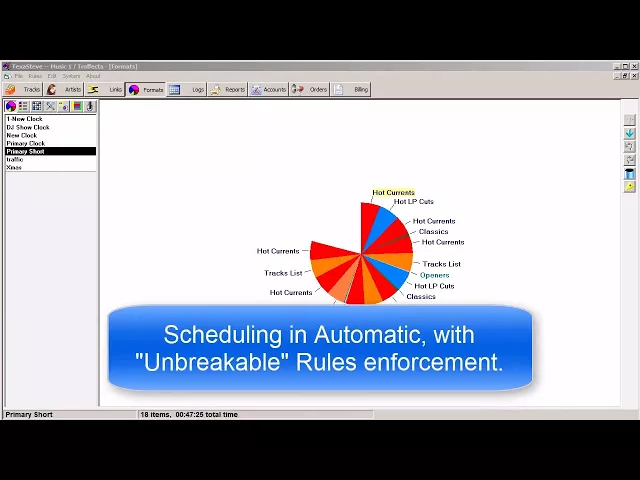
Watch the video on YouTube: Scheduling - Automatic with Unbreakable Rules
How can I get M1 to schedule the whole day without stopping for rule violations?
To schedule in Automatic, load a schedule, open the menu Rules>Enforcement…and you’ll see you can click to Automatic scheduling mode.
Be aware, though, I don’t like the auto-schedule function because, of necessity, M1 will then be forced to schedule some slots with songs that violate some of your formatting rules. Anything scheduled in violation of a rule will then be displayed with RED font for the title/artist. You can then scroll thru the day and click on the red-font songs, and down at the bottom of the screen, it’ll display the title and the Violation. Also, you can switch to the Log/List view of the schedule and have a Violations column and more quickly see what rules were violated. After the day is scheduled, you can then scroll thru the hours and spot the violations and make adjustments where you see things you don’t want to live with.

Setting M1 for 'automatic' scheduling

A schedule in the Log/List view with a Violations column added.
Scheduling several days at once
After you have it all set up, you can have M1 run several days’ schedules at once.

Watch the video on YouTube: Music 1 - Automatic Scheduling - Multiple Days