Checking song rotations
Viewing a song's play history and rotation status.
Updated
Here's what I used to watch: the 8:00 hour in the morning and the 5:00 hour in the afternoon. People are in their cars going to and from work. If I'm playing my hots, say, seven, eight, nine times a day, I want to make sure the hots in the 8:00 hour today don't repeat in the 5:00 hour this afternoon.
Every song card has two tabs to check this kind of thing: Rotation for where a song played, and History for which categories it has been in.
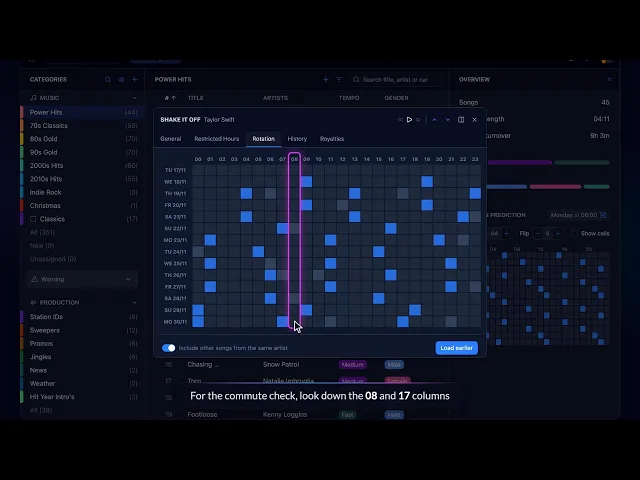
The Rotation tab
Double click a song in its category to open the card, then click Rotation. The tab isn't there when you open a song from the New or Unassigned list.
Each row is a day and each column an hour, from 00 to 23. The last finished schedule is at the bottom, with 13 days before it. A blue cell means the song played in that hour. A grey cell means another song by the same artist played then. Switch off Include other songs from the same artist to see only this song. Here I opened Shake It Off by Taylor Swift. The grey cells are her other songs in the library.

Click Load earlier to add the two weeks before.
For the commute check, look down the 08 and 17 columns. If the same Hot Current shows up in both hours day after day, it repeats at the same time of day. Adding or removing a few songs in its category changes that pattern.
You don't need to look far back. I look at my rotation patterns a couple of times a month to be sure all is in tune, but I really don't care about anything prior to that.
The History tab
History lists every category the song has been in, oldest first. Each entry shows the date, how the song got there (imported, assigned or copied), the category name and how many plays it got while it was there.
On the right you see Total plays, Last play and History from. History from is the date of the first schedule on this station. Plays from before your station moved to MusicOne aren't counted.

The whole category at once
A single card shows one song. To see how a whole category turns over, open the category and look at the OVERVIEW panel on the right. It shows the Average turnover and the rotation prediction chart, explained in Reading the rotation prediction chart.
Was this helpful?
Related articles