MusicOne Windows · Clocks & formatting
Adding Spot Break Units
Use spot break units as merge points for your automation system, or to import the advertising schedule into M1.
Updated
Spot Breaks in M1 can be used in one of two ways:
1) To put merge-points into the log file it produces for the automation system.
2) To import the advertising schedule into M1, which will then export a fully merged log file to the automation system.
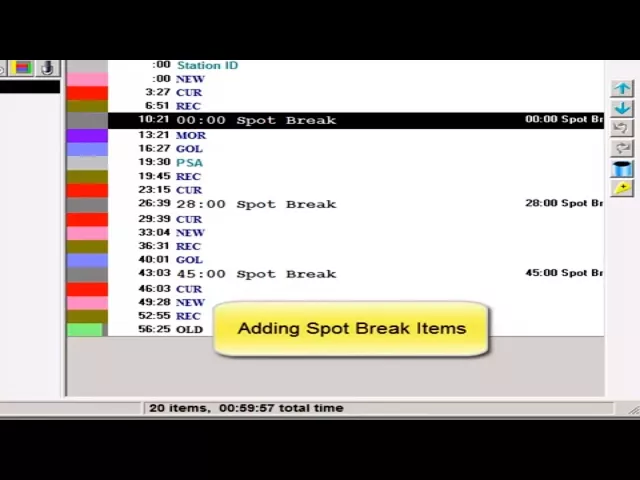
Watch the video on YouTube: Clocks - Adding Spot Break Units
Add spot break units to a clock
This is for stations that use separate traffic and billing software to schedule their advertising. If you use our TrafficONE software, there are other important spot break options, and we’ll help you with those personally.
Add a spot break
On the format clock screen, click the Insert Item button on the right side.
Click the Special button, select Spot Break and add it.
Put your spot breaks in the proper positions around the clock.
Set the length and name
Right-click the item name and select Properties.
If the Nominal Length field shows milliseconds, double-click in the field and change it to hours:minutes:seconds.
Enter the average length of commercial content you expect in the break each hour. The default is 3 minutes.
The Name field is optional. If you leave it empty, the break shows on the format clock as a plain spot break. If you enter a name, your name appears on the clock label instead.
The nominal length is only used to display the size of the slice on the clock. It doesn’t mean there can only be 3 minutes of content in the break, and it doesn’t mean there must be 3 minutes. It’s just for visual display.
Set the nominal start time
Click the Start Time tab. The nominal time is the most important setting. What you enter here must match the formatting of the breaks in your traffic and billing software. If your advertising log has breaks with start times of :10, :28 and :45, then you must have three spot breaks on the M1 clock with those specific times in the nominal start time fields.
That’s all. Nothing else has to be entered on this window, and for the majority of automation and playout systems, that’s all that needs to be done.
Special commands for a few automation systems
A very few automation systems need a special command. Some need a custom character to identify the cue in the log file that Music 1 produces, and maybe a break type. In a rare case, the following commercials in the break also need a custom sync and cue type.
The Command field is rarely needed and is specific to the automation system. If your automation system needs it, we’ll personally help you set it up.
Merge marker or advertising import
Spot breaks either put a spot break marker in the log file M1 produces, so your automation system can do the merge, or M1 uses them itself to import the advertising schedule and do the merge. Which one happens is set on the System Settings > Traffic Import screen:
If nothing is entered there, M1 exports a merge marker.
If anything else is entered, M1 imports the advertising schedule itself. That needs some initial setup on that screen, which is covered in another video.