MusicOne Windows · Automation software
AudioVault Flex – Exporting and Importing into M1
Bring new AudioVault Flex audio into Music 1: type in a few songs, or export the metadata with avfixup.exe and import it.
Updated
If you’re adding just a few songs, after you’ve ripped them into Flex, you can make a new song card in M1 and type in the Flex cart number, the Length, Title and Artist and add other information about the song. If you have imported a lot of new audio into Flex, the meta-data can be exported using an A/V tool (avfixup.exe) and then import the song information into Music 1. Here’s how:
Watch the video on YouTube: Automation - AudioVault Flex – Export Data For Import Into Music 1
Export from AudioVault Flex and import into Music 1
Find the export tool
To import newly added song data, you export the library data from AudioVault Flex with a little application that comes with your Flex playout system: avfixup.exe.
Go to the AudioVault folder. It’s usually on the C: drive of the computer.
Inside it, find the file avfixup.exe.
Your folder may not show file extensions, so make sure you select and run the right file. The folder may contain other files with the same name but a different extension, such as avfixup.TPL and avfixup.MDB. Run avfixup.exe.
Build the database
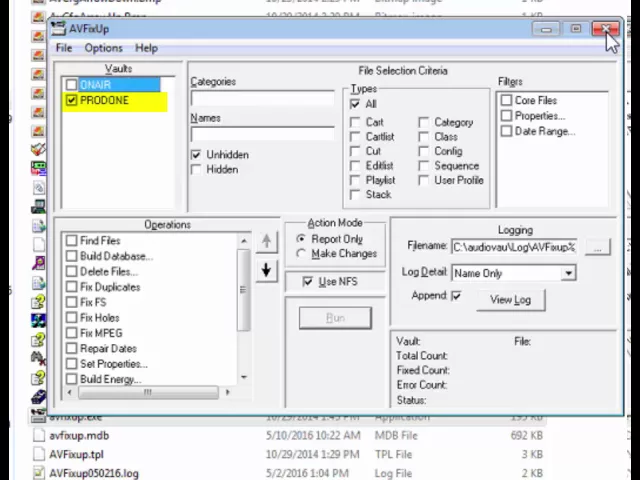
The fixup window appears. If you have more than one vault, select the one with the data you want to pull into Music 1.
In the Operations box, select Build Database.
Flex then makes a new update of the avfixup.MDB file. With a couple of clicks, Music 1 imports the data from that file.
Import into Music 1
In Music 1, click the Tracks button to see the categories.
Open the Import menu and choose Import from Track List.
Go to the File menu and select Open.
Select the AudioVault MDB import .IDF file and open it. The first time, you may have to browse to the AudioVault folder to find the file. After that, Music 1 remembers where to get the new data.
You can do this over and over again whenever you add a lot of new songs or other audio: run the fixup, then run the import. The new records come into Music 1 in the New Songs and New Tracks folders.