MusicOne Windows · Categories & packets
Category View Design
Design up to ten category views with their own columns, then add, change, move and restyle columns with a right-click on the heading.
Updated
You can make up to ten different views, each displaying the songs with different data columns. One of my views shows Title, Artist, Tempo and Gender. Another view shows me “Playlist This List” (how many times the songs have been scheduled from within their current category) and “Total Plays” (how many times they’ve played since they were first added to the library). We can switch from one data-view to another with a mouse-click.
Here’s a video showing how to customize the category list display. You may have ten for Music views and another ten view designs for Non-music items.
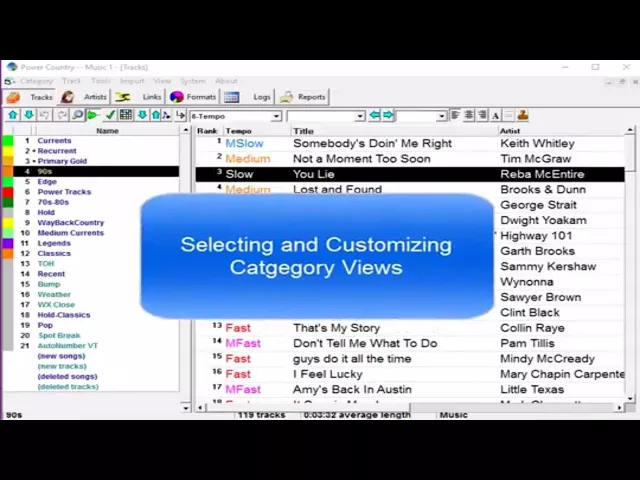
Watch the video on YouTube: Categories - Category View Design
Design your category views
I like to have several different views of my category list. Here are three examples, and then how to make your own.
Example views
Tempo: title, artist and tempo. Click the heading to sort alphabetically by tempo, and you quickly see the songs that have no tempo assigned yet.
Spins: title, artist, plays this list and total plays. Keith Whitley has six plays in the 90s category, and 193 plays since he was added to the library, the combination of all the categories he’s been in.
Dates: title, artist, the hit date (the year it was a hit) and the chart position. This song hit number two on the Billboard charts in 1994.
Create and name a view
You can make up to 10 different views.
Open the View menu and select one of the track views, for example view number nine.
To rename it, open the View menu, select Rename Tracks View and type the new name.
Change a column
Put your pointer over the column heading you want to change (for example Cart) and do a quick right-click.
Select Field and choose the new field, for example Gender.
Some fields can be shown short or long. Gender, for example: short is abbreviated. With the column highlighted and selected in the little box, you can also click the rainbow button.
The main thing to remember: when you right-click in a column heading, that column’s name shows up in the field box. Whatever you then change applies to that column: short or long view, alignment (for example centered), or the font.
Add a column
Right-click in any heading, select New Field and choose what you want to show. You can select any field in Music 1, and the column appears in your view.
Change the font
Right-click in a heading. The heading is highlighted in the middle box.
Click the A.
In the box that appears, select the font, the font style and the size for that column, and click OK.
Move a column
Right-click in a heading and select Move Column Right or Move Column Left.