MusicOne Windows · Categories & packets
Categories 101 – The Need To Know Basics
Learn the category basics in one video: rank order scheduling, views, moving songs, selection categories, rules and rotation charts.
Updated
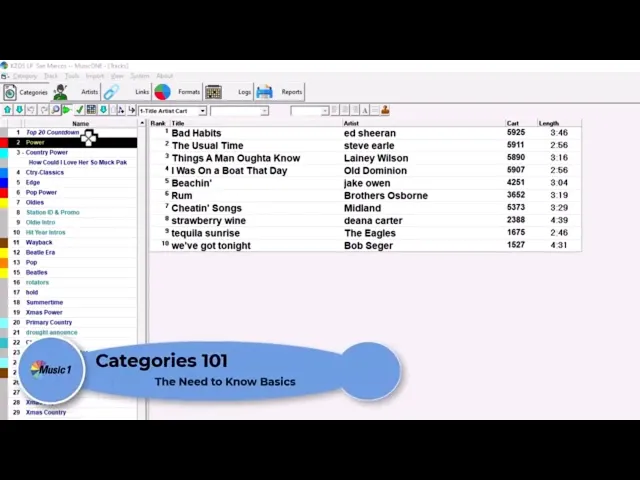
Watch the video on YouTube: Categories 101
Chapters
0:00 Start
0:42 Rank Order Scheduling
1:03 Custom Design Views
1:25 Moving Song Cards
1:45 Selection Category
2:00 Category Rules
4:01 Rotation Chart
6:00 Show Calls
Get to know your categories
Think of each category as a deck of cards, and each deck has a different number of cards in it. Before music scheduling software, we typed the titles onto index cards and put them in stacks: pull a card from the front, play the song, place it at the rear. That’s essentially what happens with each category you create.
Music 1 schedules the first song at the top of the stack, then the next song, then the next. It can’t always schedule them in 1-2-3 order, because rules come into play, such as artist separation and tempo rules.
Rank order scheduling
When you start each day’s schedule, Music 1 schedules the categories in rank order. It schedules category number one from midnight to 11 pm, then makes another pass through the day for category number two, then category number three, and so on.
Put your smallest categories at the top of the list. They have the fewest choices in them, so you want them to schedule first.
Custom design views
You can design 10 different views of your categories. One view might show title, artist and album, another the lengths and the intros and endings of the songs. To change what you see, right-click on a column heading and select a different field for that column. More in Category View Design.
Move songs to another category
To move one song, left-click and hold on the song title and drag it to the other category.
To move several at a time:
Hold the Ctrl key and left-click each title.
Drag the songs to the new category.
When the category name on the left is highlighted, release the button.
Selection categories
In the category list, a category name in italics (here: Top 20 Countdown) is a selection category. In Music 1 Pro, a selection category lets a song be in two categories at the same time. See Selection Categories.
Category rules
Click the green check mark button at the top of the category list to see the category rules. Each category has its own rules, and you generally want to leave them at the defaults. Don’t touch anything here until you really know the system.
Rotate with multiple choices: in almost all cases this is what you want, with the maximum choices set automatically.
Rotate in rank order: the other choice, for categories like a Top 20 countdown that must play number 20, number 19, number 18 and on down.
Title separation: here it’s set for an hour and 50 minutes. I usually set it for an hour. It’s only used across categories. If two songs with the same title are in one category, you make sure they’re separated in the rank order of scheduling. Title separation only comes into play when the same title is in two different categories.
Previous day separation: I leave this at zero. If the rotations are set up properly, it won’t be a factor.
Allow repeat play: leave it at 35%. Increasing it won’t help your overall rotations.
The next four boxes: leave them unchecked until you see you need them, and usually you don’t.
Alternative categories: leave these fields empty, unless you use Music 1’s hybrid scheduling, where it does the whole day on its own. See Hybrid Scheduling System.
The rotation chart
Click the little checkerboard (grid) icon at the top of the screen to open the Average Turnover chart. I believe this is the most important screen in Music 1.
The chart shows what will happen to any single song in the category, and what happens to one song happens to them all. If a song first plays at a given position, the blue squares show where the same song is most likely to come up for rescheduling over the next two weeks.
Example: a power category with 10 songs, each getting 50 plays a week. The chart shows that in many cases they’ll come up for rescheduling in the same hour two days in a row. The easiest way to fix that is to change the math. Use the Predict button at the top to see what happens if you add one more song. With 11 songs, the songs that play at 6 am on Monday won’t be heard in that same hour for the rest of the week.
Another example: a Country Classics category with 236 songs, where songs keep coming up in about the same daypart. Click Predict a couple of times to see what changes if you remove songs. Taking 10 songs out gives a much better rotation: the song that schedules at noon comes up next in mornings, then overnights, and the one that schedules at 6 pm comes up middays, then mornings.
Check the rotation charts of all your categories, and do it regularly. A change of one or two songs in a category can have a dramatic effect on your rotations. More in Rotation Prediction – Average Turnover Chart.
Show calls
Click the Show Calls box at the top of the grid to see how many times the category is called for, that is how many times it’s formatted, in each hour of the week.