MusicOne Windows · Song cards & artists
Change the Drive Letter and Path on Song Cards
Mass-change the drive letter or path in the File or Cart field on your cards, with a video and step-by-step screens.
Updated
To use the auditioning player that is on the Song Cards, Music 1 has to have the full drive\path\file name for each audio file entered in the File field. There may come a time when you need to change the drive letter or even the full path File. And, some automation systems use the full path for their playlists, so a mass-change in the Cart field might be necessary. The video below shows how to do it. After the video, see the step by step graphics.

Watch the video on YouTube: Mechanics - Changing the Drive\Path To The Audio Files
Change the drive and path on your cards
If your playout system uses the drive\path\file name to find and play your songs and other audio, there will come a time when you move everything to a new computer. You’ll then probably have to change the drive and path to all your audio on the Music 1 cards.
There is a way to avoid that: see Audio Folders for what I know to be the very best way to store your audio, for a smooth move from one computer to another. When you do have to change the drive and path, there are two ways to do it.
Option 1: the whole library at once
Load your database and close any Music 1 window you have open, so you see just the grey screen with the buttons and the three menus.
Open the System menu, select Maintenance and then Change All Track Paths.
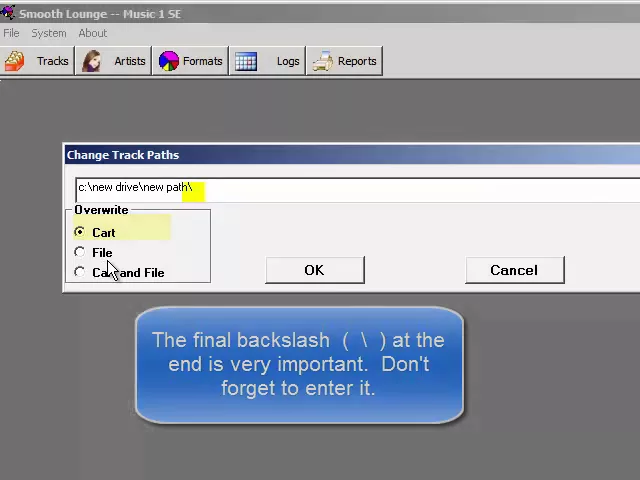
In the little window that appears, type the new drive and path.
Choose to apply it to just the Cart field, just the File field, or both.
Remember: Cart is what goes into the playlists, so it’s the most important field. File is used only by Music 1’s built-in auditioning player.
The drive and path you type are applied to every song card and every non-music card in your entire Music 1 library. You’ll probably not want to do it this way, because your audio files are most likely in several different folders, with different paths.
Option 2: one category at a time
Go to Tracks and open the category. In this example, the songs in a category named Current Instrumental have the path C:\Documents and Settings\Administrator\Desktop\Lounge\ followed by the file name.
Open the Tools menu and select Change Track Paths.
Type the new path, here C:\Lounge\Music\.
Select Cart and File, and click OK. Every song in the category is changed.
Do this for each of your music categories. The path to the station’s non-music units is a bit different: the old path C:\Documents and Settings\Administrator\Desktop\Lounge\Advertisements becomes C:\Lounge\Advertisements\, again applied to both Cart and File.


