MusicOne Windows · Song cards & artists
Song Cards 101
Get to know the Music and Non-music cards: which fields each has, which ones you must fill, and the Song Cards video series.
Updated
There are two types of Audio cards; Music and Non-music. Each of them have some characteristics that the other doesn’t. Non-music cards don’t have Tempo, Gender or Sound Codes. Music cards don’t have Announcer, Start/End dates, Products or Link Types. The only fields that you must have filled on Song cards are Title, Artist, Length and Cart Number.
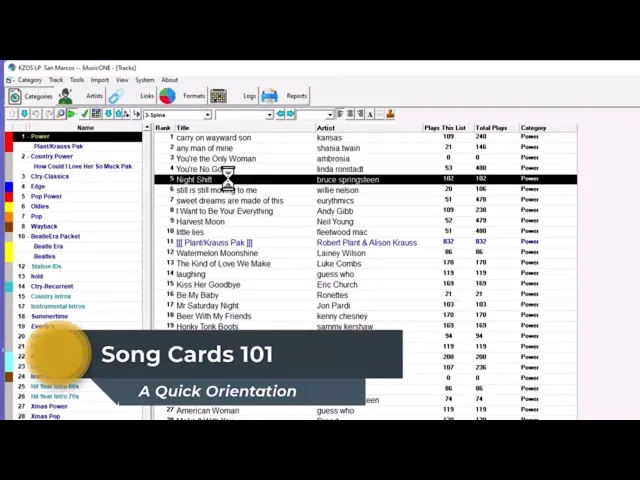
Watch the video on YouTube: Song Cards 101
Watch the video series on YouTube: Song Cards
The basics of a song card
Four fields you must have
There are only four fields you have to fill: the title, the artist, the length of the song, and the cart number. The cart number is where the automation system finds the song (or non-song) to play.
Some automation systems use a drive\path\file name instead of a cart number. Music 1 doesn’t care one way or the other: it depends on your automation system, so it’s either a cart number or a drive\path\file.
The File field and the player
The File field below is for auditioning. If it holds the drive\path\file of the audio, the player controls right below it become active, and you can click and hear the audio right there in the song card.
Timing fields
The timing fields on the right (intro, outro, hook in, hook out, mix in, mix out) are mostly useless as far as the scheduler is concerned. But if you set them, you can go through your song cards and hear just the hook of each song, if that’s something you’d enjoy.
Chart information and hit year
Above those is an information field for how the song did on the hit charts, if you keep up with that, and the hit year of the song.
Tempo, gender and sound codes
Always fill in tempo and gender. If you just select a tempo, Music 1 puts the same tempo in Tempo In and Tempo Out automatically. You might use those two separately for a song that starts slow and then gets fast, so Music 1 can put the right tempo’d jingle next to it. See Tempo’d Jingles.
Texture (in and out) and mood you don’t need, for the most part: get used to Music 1 before you even think about those. You will have some use for sound codes, though. They’re a whole topic of their own and very specific to each music director. See What should my sound codes be?.
The tabs
Custom: enter any information you find valuable, licensing information and such things.
Links: if the song is linked to anything, like hit year stagers, artist intros or artist backsells, the names of all the links show up here.
Rotation: everywhere the song has played over a two-week period. Scroll up and down to look back as far as you have logs. Blue squares are weekday plays, green squares weekend plays. Change the style view to see more: Song + Artist shows every place a song by the same artist has played over those two weeks.
Notes: add notes about the song or about the artist, and have them print on the announcers’ or presenters’ playlists.
History: every category the song has been in, when you moved it into that category, and how many times it got scheduled there up to today.
Hours: restrict the hours a song can play. Select, for example, 6 am until 10 am Monday through Friday and click the little red button, and the song won’t be scheduled in those hours.