MusicOne Windows · Song cards & artists
Non-Music Cards
Learn the fields on a Non-music card: what you must fill, dates, announcers, percentage play, links, hours, rules and the custom fields.
Updated
This four minute video has a quick explanation of the fields you find on a Non-music card in MusicONE Pro.
Watch the video on YouTube: Non-Music Card Overview
The fields on a Non-music card
There are two types of audio cards in Music 1: the familiar music card and the non-music card. A lot of the fields on a music card don’t appear on a non-music card, but the two have some things in common.
The fields you must fill
A non-music card absolutely has to have a title, a length and a cart number. It really needs nothing more than that. But there are other things you can put on it.
Start and end dates
Say you have a festival coming up. You could record half a dozen promos, each with their own days and start and end hours, put them all in one category and put that category on the format clocks. Everything schedules at the proper time, in the proper hours.
Announcers
Name your announcers in System Settings. Then you can tell Music 1 not to schedule two announcements by the same announcer back to back, or hour-restrict announcers, so announcements by announcer number one only appear in their hours, and announcements by announcer number two only in theirs.
Percentage play
Rarely used, but pretty cool. You could have three promos in one category, with one getting 50% of the spins and each of the other two getting 25%. See Play By Percentage.
Timing fields
Intro, outro, mix in, mix out, beginning and ending are informational fields. They aren’t used for any scheduling function.
Links
People who use the links function like it quite a lot. You can link tracks to songs: when the song is scheduled in a certain format position, the linked track can be scheduled next to it. You can name five different link types, for example Hit Intro and Backsell. For each linked track you set whether it schedules before or after the song, or whether either side is fine. More in Linked Tracks – Linking To Songs.
Hours
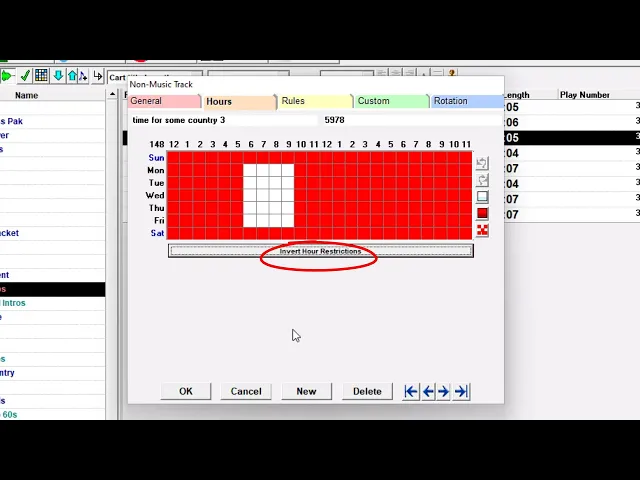
The Hours tab works just the same as on music cards, with one twist. Select, for example, 6 to 10 in the morning and click the red button, and the track is prevented from scheduling in the red hours. On a non-music card you can invert this, and the track then only schedules between 6 and 10 on weekdays.
Rules
Non-music cards can have rules that restrict what they can schedule next to. Check the Female box and the track won’t schedule next to female songs. On the Tempo tab, you can keep the track from scheduling after slow or medium-slow songs, and from scheduling before them. You can also set restrictions for texture and mood (if you use those two characteristics) and for sound codes.
Miscellaneous tab
There’s just one thing here: a place to enter a hit year. If you use hit year stagers next to your oldies, Music 1 can be set to schedule the proper hit year stager next to songs from their respective years. See Formatting Hit Year Stagers.
When you have things set the way you want them on one card, you can copy the settings to other cards in the same category.
Custom tab
These are optional fields you can use for anything you want. You name them in System Settings. For example, you might have a field for the artist’s birthday, and print that on your logs or reports. At the bottom are a couple of fields related to royalty reporting in the UK.
Rotation tab
Once you have some schedules and some history, you’ll see little blue and green squares here on every hour box where the track was scheduled, over a two-week span.