MusicOne Windows · Song cards & artists
Click-and-Hear Auditioning
Fill the File field on your cards from tagged audio files, so you can audition songs with the built-in player.
Updated
To use M1’s built-in auditioning player, you must have the drive/path/filename entered into the FILE field on the M1 cards. If you have the audio files tagged, then M1 can automatically import and update the data in the File field. This will work with .mp3, .ogg, .wma and other “tagged” audio files. .wav files do not have tags, so this mass-update can’t be done with files of that type. Contact the M1 support office if you want to get the proper data string into M1 for .wav files.
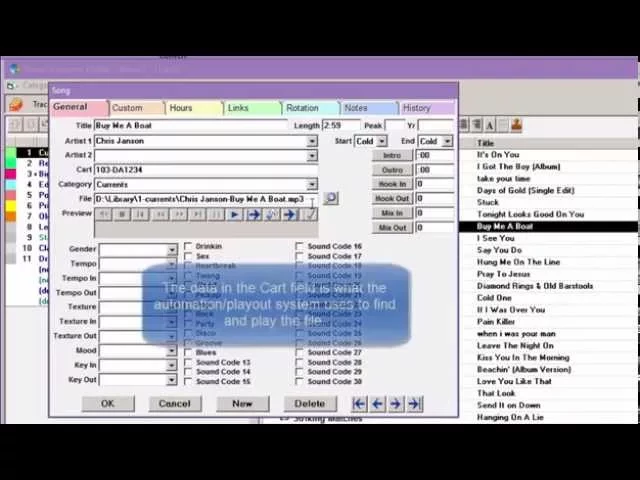
Watch the video on YouTube: Importing - Importing Drive/Path/File Into the FILE Field
Fill the File field from your audio tags
Cart and File: two different jobs
Most professional automation systems find and play audio by a cart number of their own. In WideOrbit, a widely used automation system, that’s a code of numbers and letters. When WideOrbit sees that number in the playlist Music 1 makes for it, it knows where to go on its drive to play the song.
If you want to click and hear songs in Music 1, the drive\path\file has to be in the File field. It makes no difference whether it’s an MP3, a WAV or an OGG file: Music 1’s internal player plays them all. It doesn’t interfere with your automation system, so you can have both on the same machine, and what you click in Music 1 won’t go out over the air.
If you’re an internet radio station, you probably have the same drive\path\file in both fields. That’s the case with SAM, Station Playlist Studio and a lot more.
One card at a time
On a song card with an empty File field, click the little button next to the field, browse to the audio file and select it. Or just type the drive\path\file in.
Many cards at once
Make sure your audio files are tagged properly first. See Mp3 Tags – Explained if you don’t know what tags are.
Click the category whose songs have no file name yet.
Choose to import from sound file tags.
Tell Music 1 which folder to read.
Select all of the songs.
Overwrite only the File field. This is super important: if you overwrite Cart, it replaces the automation track number, and the next playlist you make won’t work. (Music 1 has backups in case you make that mistake anyway.)
Music 1 matches most songs. Fix the few it didn’t match later. Open any matched card and the drive\path\file is there, so you can hear the song.