MusicOne Windows · Automation software
Importing from Simian
Import your library data from the Simian database into Music 1.
Updated
This video shows how to import your library data from the Simian database into Music 1.
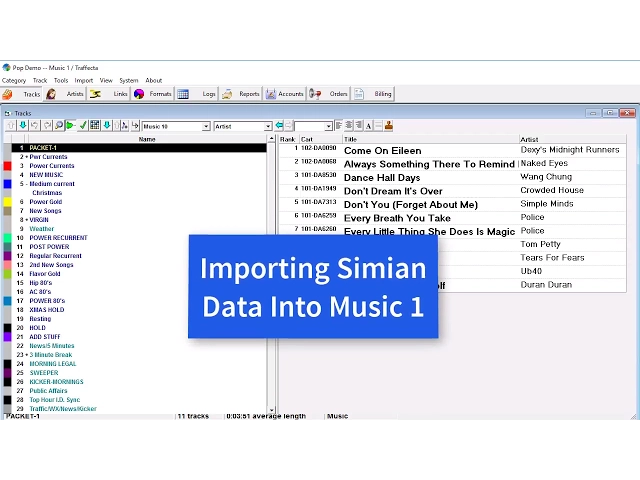
Watch the video on YouTube: Automation - Importing From the Simian Database
Import from the Simian database
Simian is a Microsoft Access database. Inside the Simian system there’s a file named audio.mdb, usually somewhere on the C: drive. To import into Music 1, you need that audio.mdb.
Get a copy of audio.mdb
Here’s the ringer: if Simian is running and using audio.mdb, Music 1 can’t import it. Simian won’t turn loose of it. What you can do instead:
If you have two Simian installs, point Music 1 to the audio.mdb on the production machine.
If you don’t, copy the file and paste it somewhere else, for example on your desktop. Music 1 can read and import that copy.
It’s a one-time-use thing. After you’ve imported it, you can toss that copy of audio.mdb away, because it’s just a work database.
Import from the track list
Go to the menu Import > Import from Track List.
When the Import from Track List window appears, open the File menu and select Open.
Select the Simian import IDF that we’ll send you. It may be named slightly differently. It’s an import definition file we design, so it knows it’s reading an Access database and ignores the first line.
Click the first Browse button, go to where your audio.mdb is (here, the desktop) and click Open.
Check the fields and import
Before you import, click Define Fields at the top. The Simian data appears in the black area below. Click a song or track and five fields line up: the Simian cart number, the file number, the title, the artist and the length. Those are the only five fields Simian gives us in that database.
Click back to File Preparation and click the Import button. All of your Simian data comes in.