MusicOne Windows · Clocks & formatting
Linked Tracks – Linking To Songs
Have M1 schedule the right voice track or stager next to a song, like a Hit Year stager or an artist drop, automatically.
Updated
Everyone who uses Music 1/Professional knows it also schedules voice tracks, jingles, promos, stagers, programs and all non-music things, as well.
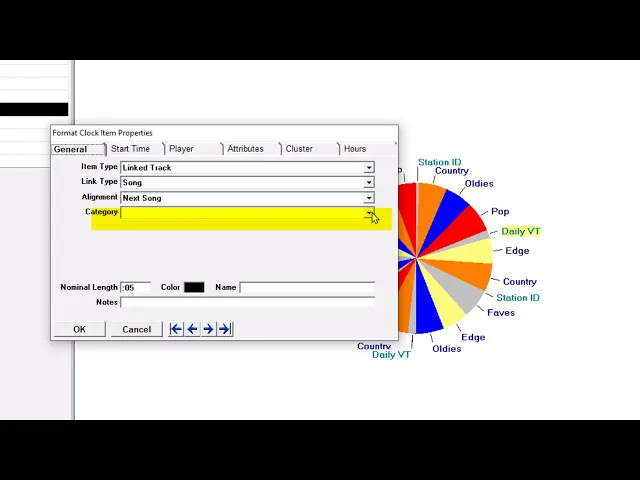
Not everyone knows about our exceptionally smart Linking functions. You can have M1 automatically schedule certain voice tracks or stagers next to songs. Say you have some Hit Year Stagers, M1 drop-in the “Hit Year 2001” just before a song from 2001. Next hour, if an oldie from 1999 happens to be scheduled in the same format position, M1 will put a “Hit Year 1999” stager just before it.
Or maybe you have a lot of Artist Drops and you want one to be broadcast every hour at 15 past. If a Lady GaGa song schedules at 1:15, M1 will put a GaGa Drop just before it. Then, at 2:15, if a Coldplay song is scheduled, M1 puts a Coldplay Drop next to it. Now, if a song schedules that does NOT have a track linked to it, you can tell M1 either to ignore the call for a link and leave the slot empty, or to schedule a Generic track in the slot.
This is quite easy to set up. Here are some screen shots showing how it’s done:


Linked tracks video tutorials

Watch the video on YouTube: Clocks - Linked Tracks Part 1
Watch the video on YouTube: Music 1 - Linked Tracks Final Step