MusicOne Windows · Song cards & artists
Mass Change Sound Codes
Apply a new Sound Code to a group of songs at once with the rubber-stamp tool.
Updated
Using the little rubber-stamp icon at the top of the category list, you can mass-change some Song Card characteristics. This tutorial shows how to apply a new Sound Code to a group of songs.
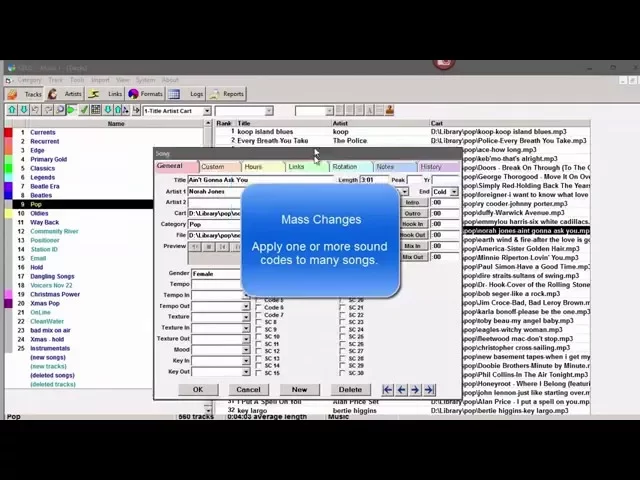
Watch the video on YouTube: Mass Change Sound Codes
Apply a sound code to many songs at once
In this example I’ve created a sound code called Long Song, because I don’t want Music 1 to schedule more than one long song an hour. A really long song, Stairway to Heaven for example, is about seven and a half minutes. If more than one of those shows up in an hour, it throws the hour off.
Create the sound code first (here: Long Song).
Search just the categories where you know you have some long songs.
Change the view so you can see the timing of the songs, and click the timing heading to sort the longest songs to the top.
Select the songs, here everything that’s 5 minutes or longer.
Click the mass change button, the little rubber stamp, and choose the field Sound Code.
All the sound codes show up, greyed out. Click the one you want once to activate it (it turns blue), then click its check box. It’s now the only white box. You can apply more than one sound code at a time if you want.
Click the yellow button to apply the changes.
Open any of these songs and you’ll see it’s now classified as a Long Song. For ideas on which sound codes to use, see What should my sound codes be?.