MusicOne Windows · Song cards & artists
Mass Change Tempo
Add Tempo to many song cards at once after an import, since automation systems and audio tags don’t carry it.
Updated
Radio Automation systems don’t have a library field for either Tempo or Gender. Neither are available as audio file tag fields. So, after new Song Cards are created by importing from one of those sources, you can mass-apply several types of data to the M1 cards. Here’s how to do it with Tempo.
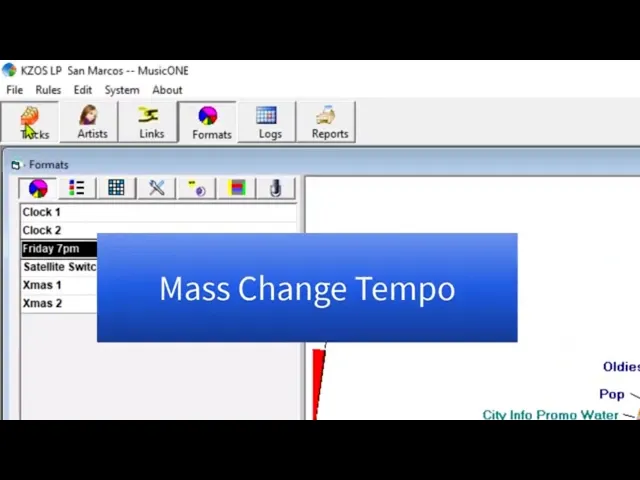
Watch the video on YouTube: Mass Change Tempos in MusicONE
Set tempos on many songs at once
When you import new data into Music 1 from an automation system or from MP3 audio tags, there’s no field for tempo, and none for gender either.
You can always open a song card and set them by hand. Open Neil Diamond’s Cherry Cherry, for example: set him to male, the tempo to Medium Fast, and click OK. To change a bunch of songs at once:
Open the category (here my Pop Power category, where a lot of songs don’t have tempos yet) and sort on tempo. The songs without a tempo move to the top.
Select the songs you want to change.
Click the little rubber stamp icon at the top of the list. The fields you can mass change open to the left.
Select Tempo, and to the right of it select the tempo, here Slow.
Click the little yellow button.
The tempo is applied and the list is restored. Sort by artist to find the songs again, and you’ll see they’re all set to Slow.