MusicOne Windows · Reports & printing
Printing PDF Playlists for Announcers
Send each announcer a PDF of their upcoming shift so they can voice-track it.
Updated
With announcers often spread far and wide, you may need to send upcoming playlists to them so they can voice-track their air-shifts. You can custom design a template for your playlists and then export the schedule for each shift to .pdf files. The two-minute video below shows the set-up.
Designing Templates for Printing Logs / Playlists shows the steps to design or customize the look of the log.
Can I Print a Playlist To PDF? And, Can I Make It In Color? shows how to add color to the pages.
Watch the video on YouTube: Music 1 - Log Print to PDF
Print a playlist to PDF
With announcers, presenters and DJs spread around the globe, you’ll need to send them playlists so they can voice-track tomorrow’s show. Most people want a PDF file, though you can also make a text file. And you can design what goes on the playlist.
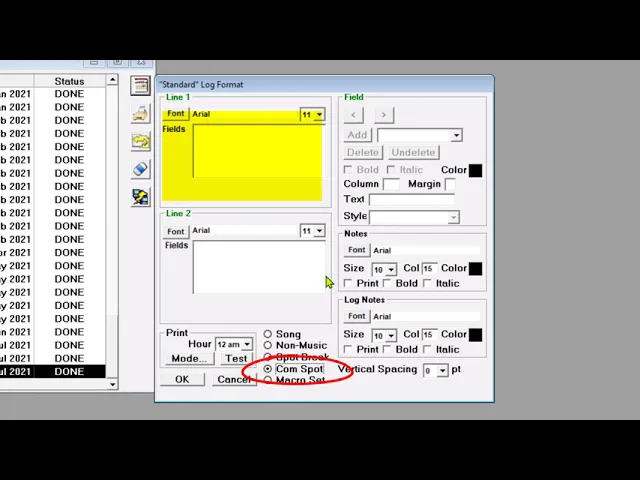
Set up the log format
Go to the Logs window, open the Options menu and select Edit Log Formats.
You’ll see your log formats. Steve’s default is Standard, so double-click Standard to open it.
There’s a song definition (what goes on each line for songs) and a line for non-music items.
If you output spot breaks and need times on them, you can add those. If you import the commercials into the Music 1 log and include them in the playlist, you can also design how the commercials appear on the printed page.
When your data fields are selected and positioned, click the Mode button in the lower left and select Black Print. By default the printer is PDF. You can also do it in colour if you wish. Click OK.
Test it
Click the Test button, pick an hour (Steve picks the 6 a.m. hour, hour number 7) and click Print. Open the file to see what your print will look like for one hour.
Print the playlist for a shift
Click Print.
Make sure PDF is selected.
Select the hours you want, for example hour number 6 through hour number 9.
Click Print, name the file as you wish and save it.
Then email it off to your voices.