MusicOne Windows · TrafficONE
TrafficONE – Scheduling Spots for Specific Hours
Schedule an order whose spots run in specific hours that change by day and week.
Updated
Here’s the scenario: You have an advertising order for the client’s ads to run in specific hours of the day, different hours each day and each week will have other specific hours and, perhaps, different numbers of spots to be run on different days.
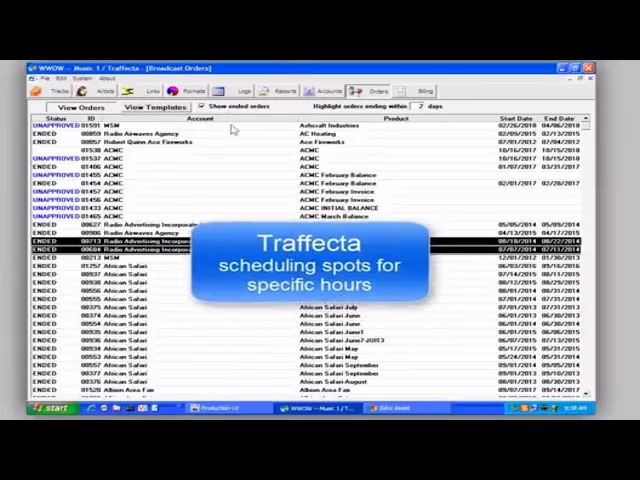
Watch the video on YouTube: TrafficONE- Scheduling Spots in Specific Hours
Schedule spots in specific hours
This order is for Ashcraft Industries: three spots a week, in specific hours on three different days, and those days change from week to week.
Open the order and type in the order details.
Select the audio track, then click to the Schedule tab.
Click the Deselect button to clear the full selection of weeks.
Week one
Select week number one.
The first ad runs on Monday in the 10 a.m. hour. Click that box, click A to make it an A rotation hour, and enter one spot for Monday. It can only schedule in the 10 a.m. hour.
The next spot is Wednesday at noon. Click the box, click A, and enter one spot for the day.
The next spot is at 4 p.m. Click the box, click A, and enter 1.
The other weeks
Click ahead to week number two. It’s a blank slate, so schedule its spots in different hours. In the next week, Steve schedules just one spot: Monday at 6 a.m.
You can copy the plan for one week to other weeks. Select week number one, click the Copy button, select week number four and paste. Now weeks one and four have the same play pattern. In the same way you can finish week two, copy it, and paste it to other weeks in the order run.