MusicOne Windows · PlayoutONE
Adding New Announcements & Arranging Them in M1
Import new announcements into PlayoutONE and Music 1, and arrange them in M1.
Updated
This video shows how to import new announcements into PlayoutONE and Music 1, and how to arrange them in M1.
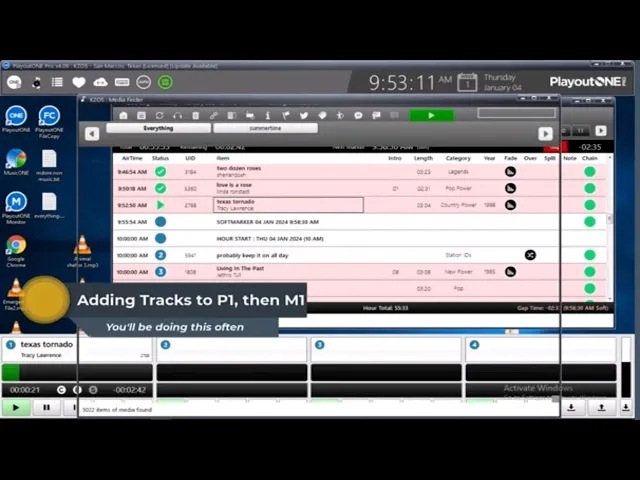
Watch the video on YouTube: Importing Announcements into P1 and M1
Add new announcements and put them into rotation
In this example Steve adds three new public service announcements, using PlayoutONE as the automation system.
Import the audio into PlayoutONE
In PlayoutONE, go to the Media Finder and click the mass importer.
Click Add Folders, choose the folder with the announcements (here, the desktop) and click OK.
Everything in that folder shows up. Select the files you don’t need and click Remove, so PlayoutONE imports only the ones you want.
Use Auto UID.
Select a type. Steve uses Non-Music; you might call it Production. It’s the same thing, just a name.
Click Import. It’s quick. When the import is complete, close the window. The new items are in the list.
One more thing in PlayoutONE: Steve wants these announcements to be allowed over the intros of songs. Select them, click the little tool button, set the option that lets this audio sweep over the intro of songs, click Yes and click OK.
Put them into a category in Music 1
Open your database in Music 1. The new tracks come into the New Tracks category (folder).
Select them and drag them into the category you want. Here that’s Station IDs.
When you drag something into a category in Music 1, it’s added to the very bottom of the category. Before you leave them, two things:
Add an end date. Open each card and enter the end date. This announcement is for a registration date of January 16th, so Steve stops the promos on the 15th.
Spread them through the category, so you don’t suddenly get three of the same announcements in a row. Select one, hold down the Ctrl key and use the up arrow on the keyboard to move it up, for example to rank position 7. Move the next one up to somewhere around the middle, and the last one up a little. The exact positions don’t really matter. You just don’t want them scheduling close to each other.