MusicOne Windows · PlayoutONE
PlayoutONE – Music 1 Setup
Set up Music 1 with PlayoutONE step by step in ten videos, from linking the library to your first schedule.
Updated
Before you begin work with Music 1, you must familiarize yourself with the software, with its functions and with the things you must know and do. If you’ve never worked with professional music scheduling software before, it is imperative that you know the basic things about this type of tool.
If you have worked with a pro-level scheduler before, you will already understand the fundamentals, but you still need to see how it is done. There are some things that are unique to Music 1 and that are different from first-generation music schedulers. These videos were made with Music 1 SE, our low-cost version for internet radio. M1 SE is based on the same source code as Version 7/Professional so everything you see here will apply to the full version.
Please watch these videos…all of them…BEFORE you launch Music 1 for the very first time.
Linking M1 to P1 and Importing Library Data
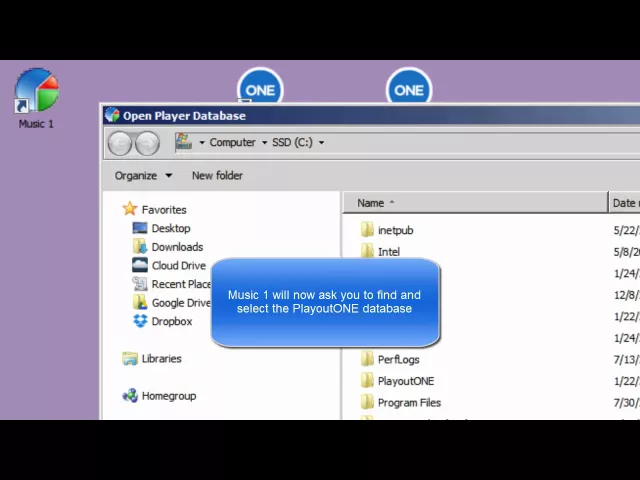
Watch the video on YouTube: PlayoutONE - Importing Library Data Into Music 1
Linking The M1 Playlist Folder to P1 and Importing Schedules
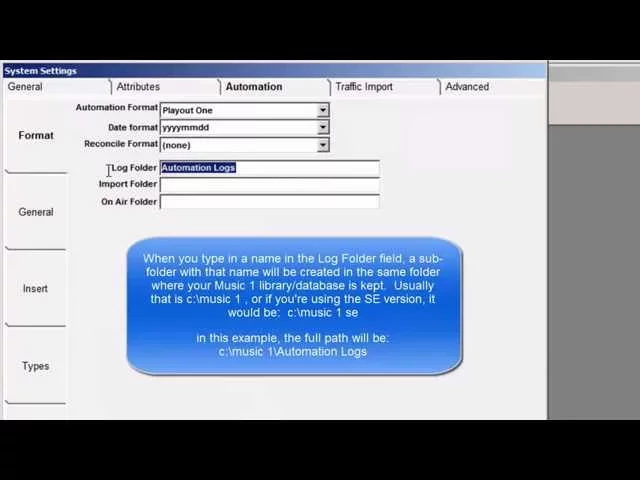
Watch the video on YouTube: PlayoutONE - Linking To The Music 1 Playlists
Creating Categories
All Song Cards are placed into Music 1 categories. These are “rotation groups”. You can categorize songs in any way you choose. Each song in a category will get exactly the same number of spins as every other song within the category.
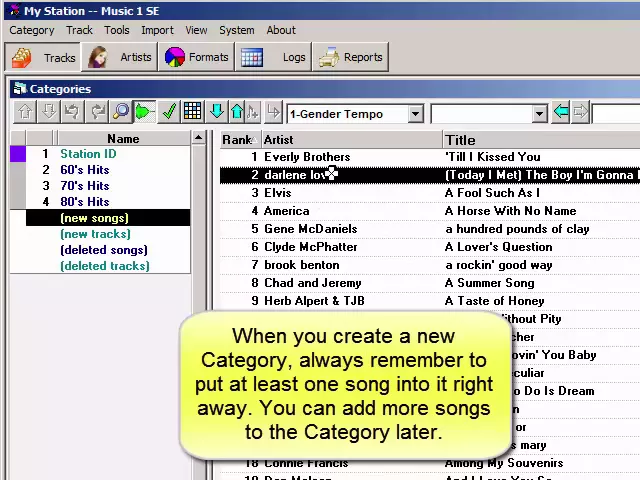
Watch the video on YouTube: Music 1 SE - Creating Categories
Shuffle Each Category
When you move songs into one of your categories, it could happen that many songs by the same artist might be stacked up in 1-2-3 order in the category. You don’t want to leave it like that, rather you need to shuffle the category to spread the songs by each artist evenly throughout the card stack.
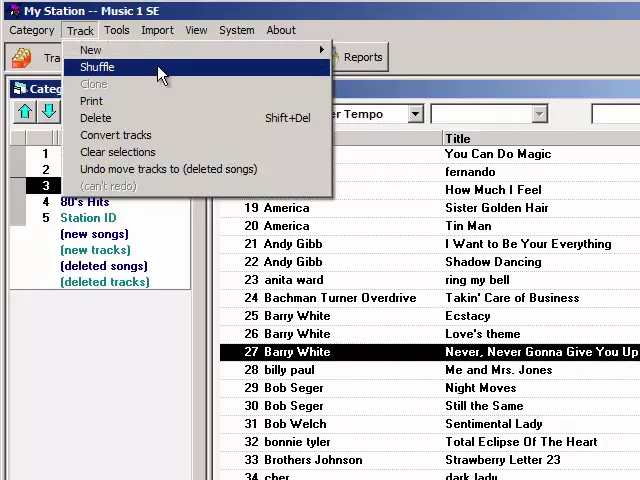
Watch the video on YouTube: Categories - Shuffle The Categories
Creating A Format Clock
Format Clocks are the template of the hour. These tell M1 where to place songs by category around the programming hour.
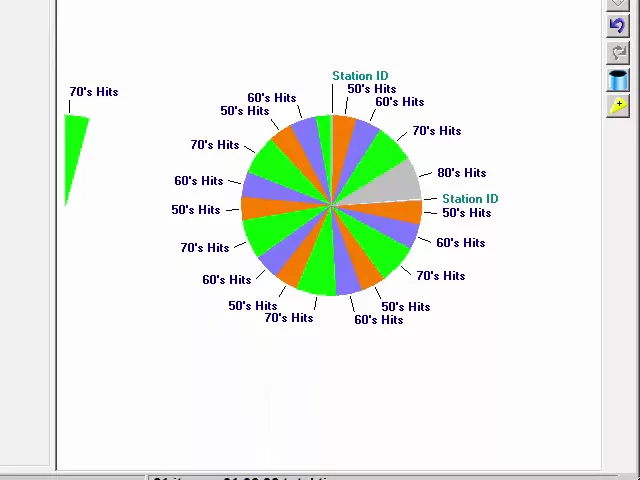
Watch the video on YouTube: Music 1 SE - Creating Format Clocks
Moving and Changing Items on Format Clocks
Clock items are added to the clock in order. You may want to change the order of the categories around the clock, or even change a slot from one type of category to another.
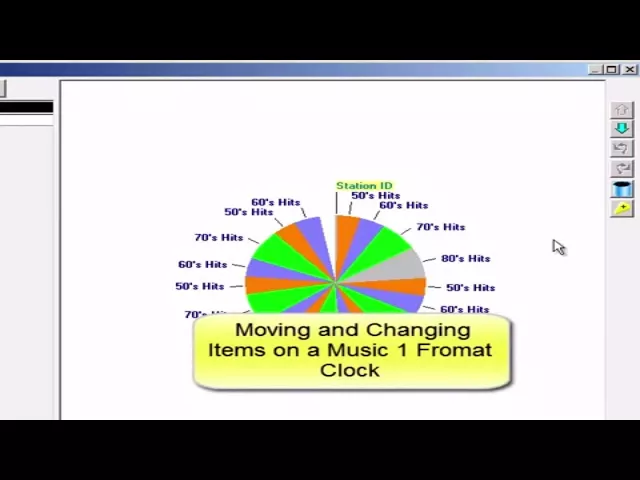
Watch the video on YouTube: Clocks - Moving & Changing Format Clock Items
The Hour Clock Lineup
On this grid, you tell M1 which clock to use in each hour of the programming day.
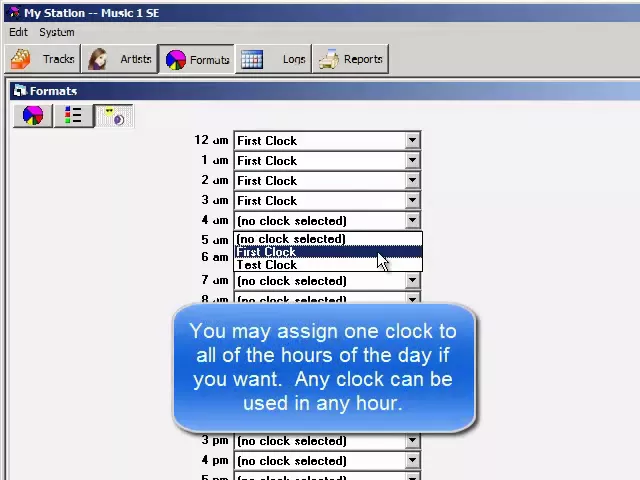
Watch the video on YouTube: Music 1 SE - Hour Clock Line-up
Artist Separation
Most music directors want to prevent songs by all the artists from scheduling too close together. You can set Artist Separation time universally (all artists have the same amount of separation time), or you can apply a specific separation time to each artist individually.
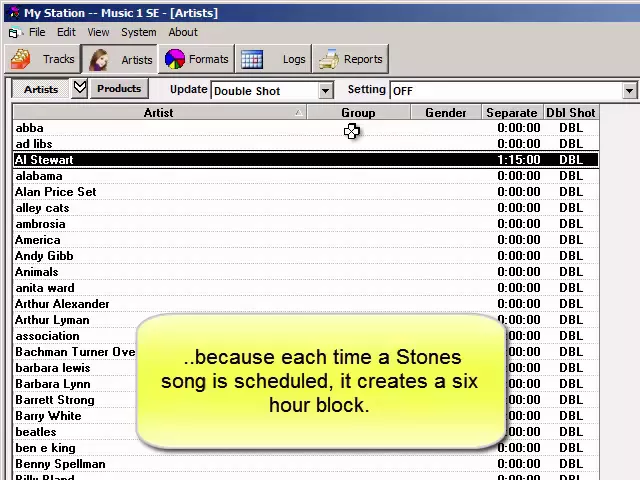
Watch the video on YouTube: Artists - Artist Separation in Music 1
Setting Artist Gender
Mp3 meta-data does not include a field for gender, so there is nothing to tell M1 if the artist is male or female during the initial library data import. You can mass-apply the gender settings after the import.
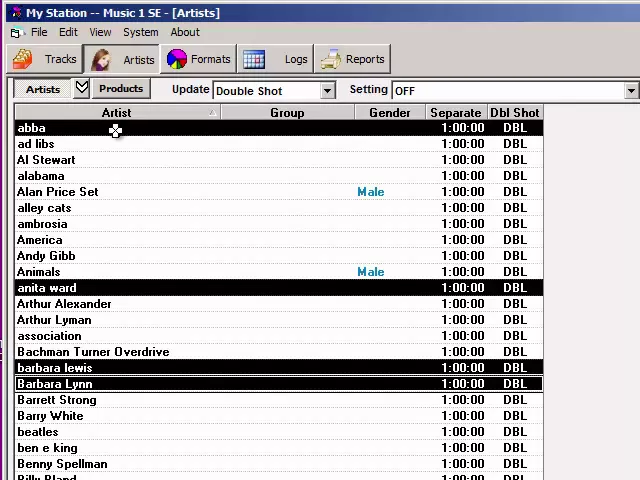
Watch the video on YouTube: Artists - Setting Genders
Running Your First Schedule
After you’ve carefully studied and taken each of the steps above, you can then run your first schedule.
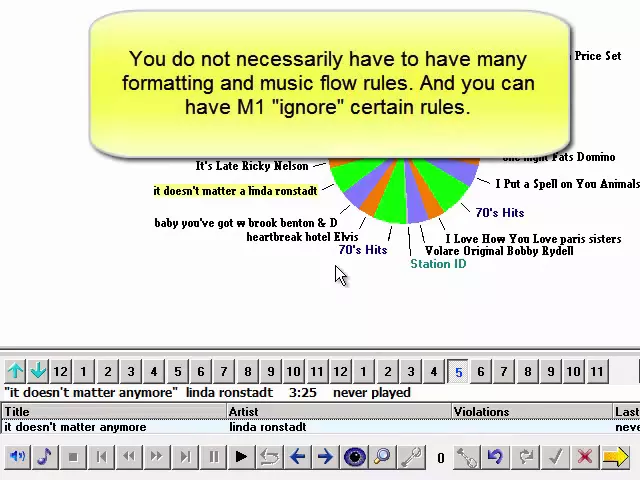
Watch the video on YouTube: Music 1 SE - Running Your First Schedules