MusicOne Windows · PlayoutONE
PlayoutONE Start-Up
Start here: all audio goes into PlayoutONE first, then onto the right type of Music 1 card.
Updated
All Audio is First Imported into PlayoutONE
PlayoutONE pushes the meta-data about the audio (title, artist, length, etc) into MusicOne and onto the correct Type of M1 audio card; either a Song Card or a Non-Music (or Production) Card. Keep in mind: You may create many audio “Types” in PlayoutONE, such as Jingle, Promo, News, Weather and Sunday Church Hour, and all of these will have the Scheduler Type as: Production as they are imported into P1. Those will go onto Non-Music cards in M1. The video runs 4:45.
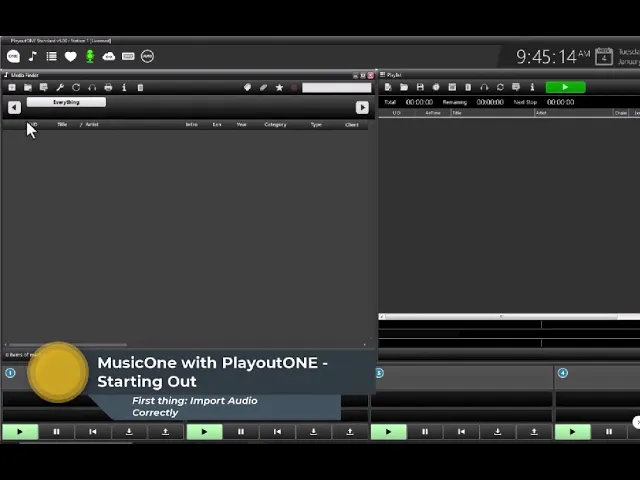
Watch the video on YouTube: PlayoutONE Start-Up
Import audio into PlayoutONE and Music 1
When you use Music 1 with PlayoutONE, all audio is first imported into PlayoutONE. PlayoutONE then pushes the metadata (title, artist, length) into Music 1, onto song cards and non-music cards.
Import a folder of songs
Go to the PlayoutONE Media Finder. In the top left-hand corner, the first button imports a single track, and the second (folder) button imports a folder of songs.
Choose the folder. If it has subfolders, you can tell PlayoutONE to import those too. In the video Steve goes straight to a subfolder.
To import everything, click Import. Or select some tracks first and click Remove, so PlayoutONE doesn’t import them.
As you import, you may want PlayoutONE to normalise the audio. That balances out the volume, because some tracks are too low and some a little too high.
For audio files that don’t have the title and artist embedded, you may want to use PlayoutONE’s own metadata database.
The UID
On the next screen, the import options screen, look at the start UID. UID stands for unique identifier. Every track that comes into PlayoutONE has to have its own separate number. That number is what Music 1 puts into the playlist to tell PlayoutONE what to play, and whatever that number is, is what gets played on your station.
You can customise the UID. Some people like to put JIN before all their jingles, so they can search for JIN in PlayoutONE and all the jingles pop up. But generally, use Auto UID.
Songs and Production
This can be a little confusing, so pay close attention. Music 1 has two types of audio cards: song cards, and non-music cards for everything else, from a jingle to a one-hour program. In PlayoutONE, the type for everything that isn’t a song is Production. Everything that isn’t a song goes onto a non-music card. There’s one exception, commercials, but that’s another topic.
Finish the import
If you’ve already created categories in Music 1, you can select a category for the import, and everything you import goes into it. Otherwise you can drag the tracks into categories later in Music 1.
Click Import. It can take a while if you’ve told it to normalise and you’re importing, say, 500 songs.
When the import is complete, close the window. The songs start to populate the Media Finder list.
Open an audio card in PlayoutONE and you’ll see the title, the artist, the type (song) and the UID number.
In Music 1
If you didn’t select a category, the tracks come into New Songs or New Tracks. Select them there and drag them into a category, for example Oldies. When you move a song into a category in Music 1, it’s automatically moved into the category with the same name in PlayoutONE.
Import a single song
In PlayoutONE, click the little plus button in the top left-hand corner. That opens a new audio card.
Click the little folder in the top left-hand corner, go to your music folder and select the song. The title and artist show up.
Click the little circle to give it an Auto ID.
Set the type. You have to do that: this is a song, and remember, everything that isn’t a song is Production.
Enter the year if you wish, and click Save.
The song is now in PlayoutONE and is passed on to Music 1, where you’ll find it and move it into the category you want.