MusicOne Windows · PlayoutONE
PlayoutONE – MusicONE Connections
Use PlayoutONE's Auto Importer to give songs, ads and production their own UIDs, and see the new cards arrive in Music 1.
Updated
This video shows the important things to know about Types and Categories and their connections between the MusicONE and PlayoutONE databases.
Watch the video on YouTube: Keeping your Media tidy - Music1 & PlayoutONE
Keep your media tidy with the Auto Importer
Perhaps your media in PlayoutONE is all over the place, with the UIDs for songs and adverts all using the same numbering system. With the Auto Importer you can give ads, music and production their own specific UIDs. In this example there are already import folders for commercials, production and songs, and we add a new import category for specialist music.
Create an import rule
In PlayoutONE’s Auto Importer, select New to create a new import rule.
Give the import a name. Here it’s Specialist Music, for specialist music shows.
Set the import folder in your import directory. You can use Dropbox for imports. Here a Specialist Music folder is created inside the import folder.
Go to Cart Details. Mostly you can leave the properties as they are. For an advert you might deselect Auto DJ, so it isn’t used by the filler commands or Auto DJ. You might not want specialist music used that way either.
The type is important. Set it to Song for this rule, and set the category to New Songs. For an adverts rule, you’d leave the category blank and change the type to advert or commercial.
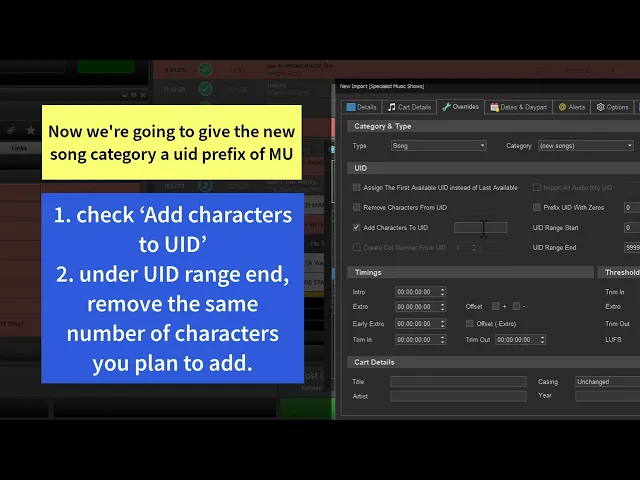
Set the UID. Here "MU" is added to the UID, and two places are taken off the UID end range to allow for that addition.
Save.
See it work
The Auto Importer creates the Specialist Music folder itself, with Failed and Imported folders inside it. Drop one song into the Specialist Music folder and another into the Songs folder. In the Auto Importer you can see the items being processed and dropped into PlayoutONE.
The new songs appear in New Songs, with UIDs that follow their import rule. The same two songs show up in Music 1, with their new cart IDs.