MusicOne Windows · Categories & packets
Selection Categories
Put songs in two categories at once with a Selection category, for a weekend show or a countdown, and remove one when you are done.
Updated
Selection Categories allow songs to be in two categories at the same time. In this demo, I’m making a Selection category and filling it with Rolling Stones songs. Then I can make a clock that will schedule Stones and nothing but Stones and then use that clock for an All-Stones hour on Saturday night. Selection categories don’t have to be artist-specific, of course. They can be any grouping of songs that you choose. The songs in a Selection category will have totally separate, unique rotations from what the songs are getting within their regular Master categories.
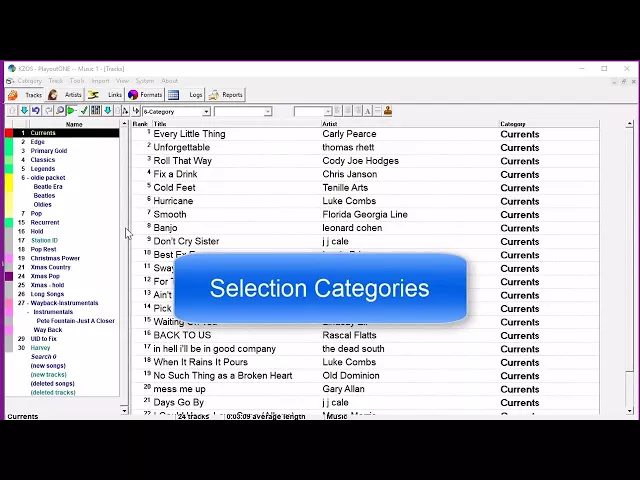
Watch the video on YouTube: Categories - Selection Categories
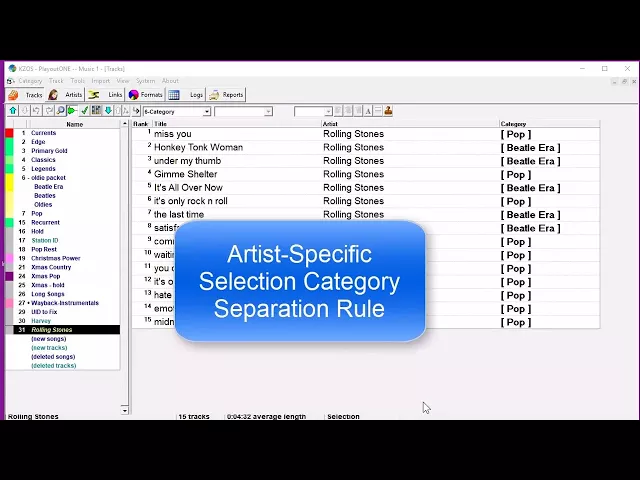
Watch the video on YouTube: Categories - Selection Categories - Artist Separation Rule Override
Setting up a Selection category for a weekend show
We’re going to be running a 70s and 80’s Gold Program on weekends and I need to have a lot of songs from those years to schedule on Saturday night but I don’t want to have to move them out of their regular categories that are used during the week. Is there a way to have songs in TWO categories at the same time?
Yes, you can do this with version 6. What you do is create a “Selection” category. Open your Categories window, then: File>New Category>Selection
Name the new category. Then M1 displays a new, empty category. Open the menu and do a search. When you’ve got a set of found songs, you’ll notice the button at the bottom is labeled ‘copy’ instead of ‘move’. Click to select all the songs you want in the new/selection category and move them into it. Now these songs are in TWO categories.
The rotations/plays of the songs in the Selection category will not conflict with the rotations/plays of the same songs in their other/primary category.
In some cases it may be best to create two or three of these Selection categories for your special programming rather than just one because if you have only one, then the songs in it are most naturally going to always schedule in one-two-three rank order. For example, if you have only one Selection category and “Billie Jean” is rank #83 and “Every Breath You Take” is rank #84. If that is the ONLY category you use on your format clocks, then as long as they remain at those positions they will almost always schedule back to back. You could shuffle the category every week to change the rank order, but that might get several songs of one particular ‘type’ or by one artist bunched up together.
What you could do instead would be to create two or three selection categories and give them a kind of a ‘theme’. Maybe one selection category with all uptempo songs, another with all down tempo, another with all disco-flavored titles and so on. Then as you build your clocks, you’ll have more control over the nuance and flow.
Selection Categories are an advanced function which is not available in the LE version.
Removing a Selection Category
Selection Categories are the type that allow songs to be in two categories at the same time, getting scheduled from both of them. A common example is using one for a weekly Top 20 Hits Countdown. The songs are scheduled through the week in their regular categories and they are copied into the Top 20 Category. Each week, some songs are removed from the Top 20 list and replaced with others and arranged in countdown order. (Selection category names appear in italics.)
When a Selection category is no longer needed, to delete it you must first remove all of the song cards from it. Then you can delete the category.
