›
›
›
How Do I Change the Scheduling Order Of My Categories?
MusicOne Windows · Categories & packets
How Do I Change the Scheduling Order Of My Categories?
Set the rank order your categories schedule in, and link categories so they schedule in the same pass.
Updated

Since Non-music categories don’t have many formatting rules, I usually move all of them down below my music categories. I like to have all my music categories at the top of the rank order so I don’t have to scroll up and down the list when I’m moving songs from one category to another.
Linking categories to schedule in the same pass
M1 schedules the Categories in Rank Order, one after another. Selected categories can be set to schedule in the same pass order. If joined together, the categories will have the same Rank number. Here’s how to link and un-link Categories pass-order.
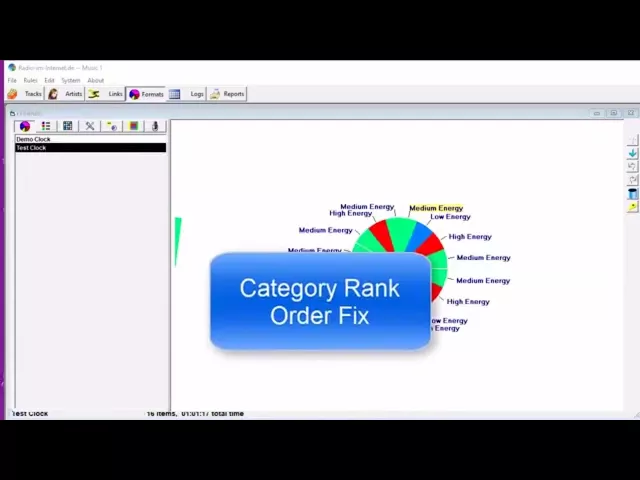
Watch the video on YouTube: Category - Rank Order Fix
Fix the category rank order
Music 1 schedules in multiple passes through the day: it schedules the first category completely, then the second, then the third, all the way down the list. Two odd little things can happen to the category rank order.
Two categories with the same rank number
Sometimes a database shows two categories with the same rank number, for example two number ones and two number fours. Those categories are joined: they schedule in the same pass. In a very rare instance somebody might want that. You join or unjoin categories with a menu command.
To unjoin two categories:
Click the lower one of the two.
Open the Category menu and select Schedule in a Separate Pass.
The list now runs 1, 2, 3, and the two fours have become fives. Separate those the same way.
Missing rank numbers
Sometimes numbers are missing from the rank order: no number four, or no nine, ten or eleven. We’ve never been able to replicate this in the office, but there is a fix: open the Tools menu and select Reprioritize All Categories. Everything is back in order.