MusicOne Windows · PlayoutONE
PlayoutONE and Music 1 On Separate Computers
Work on Music 1 away from the PlayoutONE computer: what still works, how to add songs, and getting playlists back.
Updated
When PlayoutONE is your automation system, Music 1 is always first installed on the same computer because the two are exchanging data all the time. Change an Artist name in M1, it changes in P1’s database. Edit a Title in P1, it changes on the Music 1 Song card. Most importantly, when you add a new audio file to PlayoutONE, it creates the important UID/cart number and also then creates a new Song card (or non-music card) in the Music 1 database for that new track. If you run M1 from a different computer, the interaction can’t happen.
If you are not going to be doing any scheduling on the second machine, if you only want M1 on it for work with format clocks and category updates, you won’t have to bother with moving the Logs or setting up a system to get the new daily playlist files from the laptop back to the P1 machine, then you only need to move your station library .m1 database back and forth, knowing that all scheduling will be done when you move the ‘working’ database back to the master machine where you have both M1 and P1 installed.
Adding Songs On An Un-Connected Music 1 Database
In normal operation, with Music 1 installed on the same computer as P1, then all audio is first imported into PlayoutONE which automatically inserts it into the Music 1 database. When a new Song card is to be added to a M1 library that is now on a separate computer, you will manually type in the Title, Artist, Length and other data fields. Most Importantly, you will manually type in the UID number. PlayoutONE creates that number. Be Very Careful to get that UID entered correctly on every M1 card you may manually create.
If you are going to be scheduling on the separate M1 computer, you will then need to move the daily playlist files back to the correct folder on the PlayoutONE machine. Or, you can have M1 put the playlist files into one of the Cloud storage services (DropBox, Google Drive, etc.) and also set the P1 computer to look to that cloud source for the daily playlists.
Below is a video demo of the basic things to know:
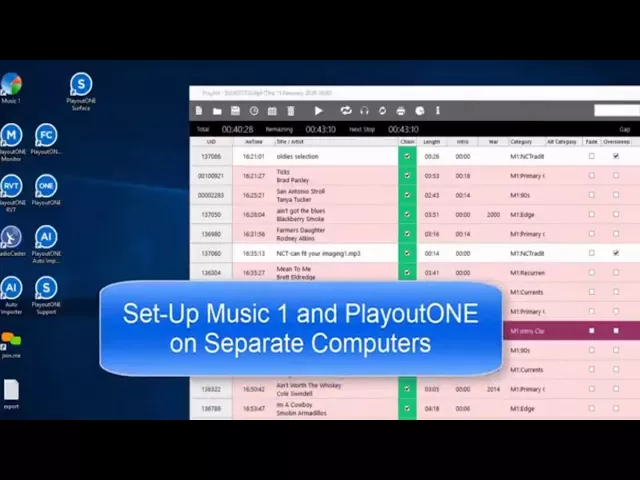
Watch the video on YouTube: PlayoutONE - Music 1 On Different Computers
Disconnecting M1 To Work Remotely
This section applies only to the PlayoutONE and Sync-Harmony automation systems.
Of all the automation systems that M1 works with, our tightest integration is with PlayoutONE and its sibling Sync-Harmony. Any change to a song card in M1 is immediately reflected in P1. If a new song is imported into P1, it automatically imports onto a Song Card in M1. In order to do this, the M1 and P1 databases need to be on the same computer or network. If the (station).m1 library file is moved to a different computer, when M1 is first started it will begin searching for the P1 data. In a few seconds, a message will appear saying it is unable to locate the PlayoutONE database. You may then click the cancel button and M1 will not ask for it again. The finished playlist files that are run and saved on the second computer are then moved to the folders on the automation system computer.
If your station is using the P1 or Sync-Harmony automation system, for more info about the ins and outs of this, contact Steve or Neil at the M1 offices in the US, or Dave at the PlayoutONE office in the UK.