MusicOne Windows · PlayoutONE
PlayoutONE Commands – Hard and Soft Syncs
Keep over-scheduled hours on time: have M1 tell PlayoutONE to hard sync or soft sync at the end of each hour.
Updated
Most commercial broadcast stations over-schedule each hour by a song or two because the music director doesn’t know in advance what the commercial content for the future days will be. The extra content is there to ensure the hours will not come up short, less than 60 minutes. Even when commercial content is not a factor, there is the possibility that some hours may occasionally get several longer songs scheduled which then result in the hour being over-scheduled by several minutes. If numerous hours are over-scheduled and Time Updates are not used, as the day progresses the start-times of the songs-and-hours may be shifted to much later than they appear on the M1 schedule. To avoid this, Time Updates are used. These are often called “hard sync” and “soft sync” commands. Here’s a video showing how these commands work.
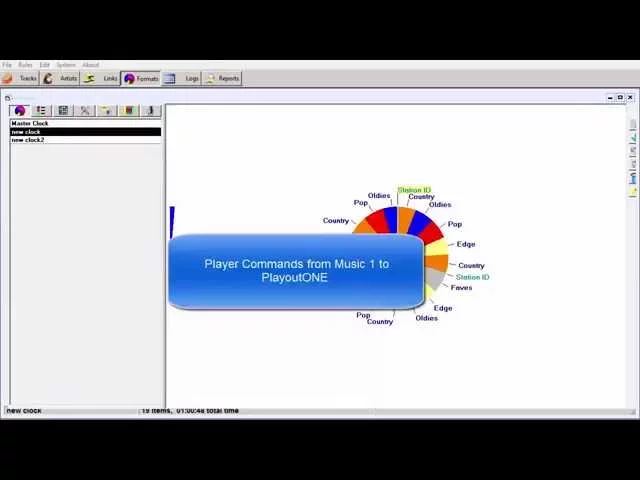
Watch the video on YouTube: PlayoutONE - Time Update Commands
Commands can be formatted directly into the Music 1 Format Clocks that will then direct PlayoutONE to do such things as hard syncs, soft syncs, network/stream joins and breakaways, etc. So, for example, if you are over-scheduling hours (as many do) you can have M1 tell P1 to fade the song playing at 59:59 past the hour and jump to the first thing scheduled at the beginning of the next hour. Or, you could have M1 direct P1 to finish the song or audio file that is playing at 59:59, then jump to the first unit of the next hour.


Adding Player Commands To M1 Format Clocks
There are sixteen different Commands available, but the most commonly used are the two end-of-hour commands. Most stations choose to use one or the other. Remember: Soft Sync/SOFTMARKER will allow whatever may be playing at 59:59 to finish fully; Hard Sync/HITMARKER will immediately fade whatever may be playing at 59:59.


